
Web-based CAD earns its place when it opens your consultants' files, sends them back, prints to scale and survives one live job. Picture a design lead redrawing the existing ground floor of a terraced house at home, with the surveyor's DXF open in one tab.
The browser takes away the install. The questions about files, scale, sheets, sharing and leaving stay the same as for any CAD tool. A few more cover the connection and the account. This checklist follows that order, and every item ends in something you can test on a real job. Run it on one live project before you move a team, and keep your desktop tools beside the new one.
Key takeaways
- Test a browser drafting tool on one live job before you move a team, and keep AutoCAD, Revit or Archicad beside it.
- Run the consultant round trip first: import their latest file, send an export back and ask them to open it.
- Type lengths from a measured survey, then print one sheet at scale and measure a known wall.
- Open the project on your oldest office laptop and a home machine, in the browsers your team uses.
- Export every sheet and the drawing once before you commit, so you know the way out works.
- Ask the vendor in writing where drawings are stored, who can open them and how seats are billed.
Files in and out: test the consultant round trip
Start with the files, because a drafting tool that cannot take a consultant's drawing or send one back becomes an island. A typical job brings in a measured survey, a structural layout and services drawings, mostly as DWG or DXF. Your consultants then expect something they can open in return.
List what the test job actually exchanges before you open anything. Note the format each consultant sends, the format they need back and the software they use. The guide to common CAD file formats covers what each format carries.
Then run the round trip on a live drawing, not a tidy sample. Import the surveyor's latest file and look at layers, text, hatches and blocks. Measure one dimension you already know. Export the drawing, send it back and ask the consultant to open it in their own software. The tool passes when they can carry on working without redrawing anything.
Synaps imports a DXF, SVG, PDF or image, and a consultant's DWG comes in as a DXF exported from their CAD application first.
Where any browser tool reads DXF rather than DWG, agree with each consultant who makes that export and at which version. Confirm the drawing units the consultant exported in, and ask them to bind or remove external references before they export. The comparison of DWG and DXF explains the differences that matter on a round trip.
Precision and scale: typed lengths, snapping and a plotted check
Precision is the item a screen hides best, so test it with numbers you already trust. Take one room from a measured survey and redraw it from the survey figures. Type each length and angle rather than dragging to it. Then compare the drawn room with the survey, wall by wall.
Snapping matters as much as typed input. Try endpoints, midpoints, intersections and perpendiculars on walls you have just drawn. Then snap to the imported consultant geometry, where tiny gaps and overlaps tend to show up.
In Synaps precise drafting, you place a wall's first point and type the length, and the typed value takes priority over the pointer.
Finish with a plotted scale check, because a drawing can measure true on screen and still print wrong. Print one sheet at 1:50 or 1:100 on the office printer, at 100% with no fit to page. Put a scale rule on a wall you know and on the scale bar. The guide to architectural drawing scales covers which scale suits which drawing.

Sheets and printing: paper sizes, scales and title blocks
Sheets are where a browser drawing becomes something a client or consultant receives, so set up the ones you would issue on this job. Use their real paper sizes. Set up a sheet at each scale the job issues, such as a 1:100 plan and 1:20 details.
Bring in your office title block rather than drawing a fresh one for the test. Fill in the job number, revision and drawing status. Then see how the tool handles a revision change across several sheets. The guide to the architectural title block lists the fields a sheet usually carries.
In Synaps, a paper takes an ISO size from A0 to A6 or B0 to B5 and a drawing scale such as 1:50 or 1:100.
Print the PDF at full size as well. Use the office printer for A3 and the print shop for A1 if you send plots out. Look at line weights, text height and hatch density on paper. A sheet that reads well on screen can turn grey and crowded once printed.
The browser, the machine and the connection
A browser tool still runs on hardware, so test it on the machines your team really uses. Autodesk's AutoCAD web app page says the app "requires certain capabilities from the browser it runs on". The page lists 64-bit Chrome, Firefox and Safari, plus Chromium-based Edge (checked 12 October 2026). Lists like this change over time, so read the current one for the tool you test.
The browser is only half of the requirement. MDN notes that WebGL support is present in all modern browsers, but the user's device must also have hardware that supports it.
Open the test project on the oldest laptop in the office and on one home machine. Use each browser your team runs. Pan, zoom and snap on the largest drawing in the job, with the consultant underlay switched on. Sluggish panning on the oldest machine tells you who would struggle first.

Test the connection as well. Work on the project from home and from wherever drawings really get done, such as a site office. Ask the vendor what happens when the connection drops in the middle of an edit, and whether anything is lost.
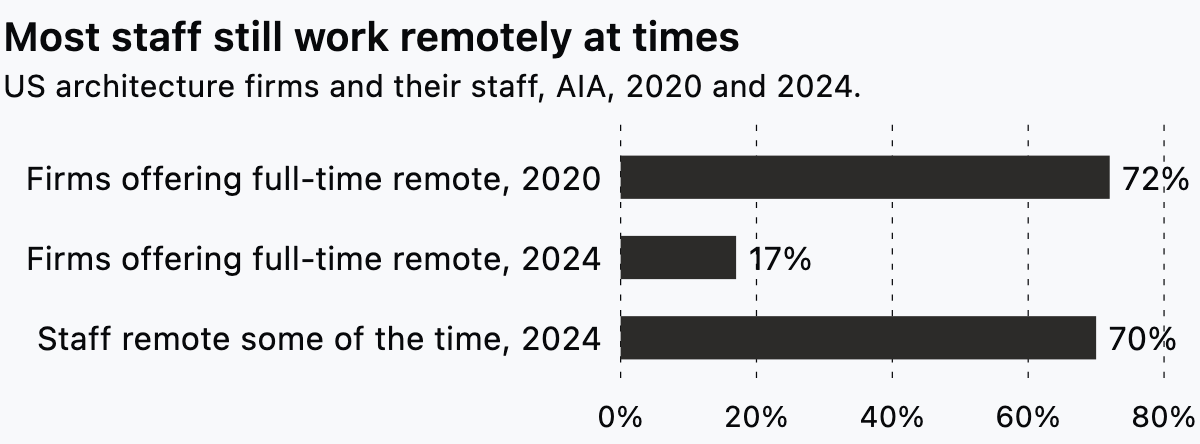
Working away from the office some of the time is normal in practice now. AIA Architect reports that 70% of staff at US firms worked remotely at least some of the time in 2024. Full-time remote offers fell over the same years, to 17% of firms in 2024 from 72% in 2020. That is why the machine and connection tests matter.
Saving, history and getting your work out
Plan how you would leave before you commit, because a browser tool keeps your drawings in the vendor's account. Ask how and when work is saved. Ask whether earlier versions can be restored, how far back they go and who can restore them.
Then run the exit once on the test project. Export every sheet and the drawing geometry. Open the files in your office CAD tool and carry on drafting from them. If carrying on needs a redraw, the exit plan has failed.
In Synaps, you export a paper as PDF, DXF, PNG or JPEG, with one combined PDF or one file per paper.
The European Commission's Data Act explainer says the EU Data Act applies since 12 September 2025. Under it, providers of software as a service must, at a minimum, export data in a commonly used and machine-readable format. The rules cover cloud services offered to customers in the EU.
Whether that covers a given CAD vendor, and which of your files it reaches, depends on the vendor. Ask them how the rules apply and what their export includes.
Keep the exported set with the job record. If the account lapses or the vendor changes, the drawings still sit with the practice.
Sharing, roles and who pays
Sharing decides how the tool fits a team, and billing decides what it costs as the team grows. Map the roles on the test job first: who draws, who reviews and who only needs to look.
NBS reports that eight in ten respondents to its 2023 survey of UK construction professionals use a form of cloud computing in their daily workflow. Three-quarters (75%) use it to collaborate with other team members. Those figures cover all respondents, not architects alone. Storage is the main use, and collaboration is close behind.
So your consultants likely share files through a cloud service already. What matters is how the drafting tool's own sharing sits beside that.
Test each role on the live project. Give one colleague edit access and the principal view-only access. See what each person can open, change and export. Find out whether sharing covers one drawing or the whole project.
Synaps bills paid plans per editor, and a project is shared with Editor or Viewer access.
Work out the cost for your real team rather than the example on the pricing page. Count who edits in a typical month and who only views. Ask whether viewers count as seats and what happens to a project when an editor leaves the practice.
Data and security questions to ask the vendor
A few written questions show how a vendor handles your drawings and your clients' information. The UK National Cyber Security Centre's cloud security principles give a useful frame. They are guidance for choosing cloud services and do not certify any product. Six of the fourteen principles map onto a drafting tool:
- Data in transit protection: how drawings are protected between your browser and the vendor's servers.
- Asset protection and resilience: where files are stored and how they are backed up.
- Secure user management: how you add people, change their role and remove them.
- Identity and authentication: how people sign in, and whether the account can require a second factor.
- Audit information and alerting for customers: whether you can see who opened, changed or exported a project.
- Secure use of the service: what your own team has to do, such as removing leavers promptly.
The same guidance, under physical location and legal jurisdiction, says you should know where your data is and who can access it. That includes the countries where data is stored, processed and managed, and the legal jurisdiction it falls under.
Ask for the storage countries and the list of people who can open a project, in writing. Keep the replies with the practice's IT notes, so you can answer a client who asks where their drawings sit.
Run a one-project test before you move the team
A one-project test turns this checklist into evidence. Pick a live job that is real but contained, such as a rear extension or the redraw of an existing flat. Run it with the people who would use the tool every week. Agree up front which results would end the test.
| What to test | How to test it on a live job | What a pass looks like |
|---|---|---|
| Consultant files in | Import the latest DXF from a consultant on the job | Layers, text and hatches arrive and a known dimension measures true |
| Files back out | Export a DXF and send it to the consultant | They open it in their own software and carry on without redrawing |
| Typed precision | Redraw one room from the measured survey figures | Every typed length matches the survey |
| Plotted scale | Print one sheet at 1:50 or 1:100 at full size | A scale rule on a known wall matches the drawn length |
| Machines and browsers | Open the largest drawing on the oldest office laptop and a home machine | Pan, zoom and snapping stay usable on both |
| Sheets and title block | Issue one sheet with the office title block, then change the revision | The revision updates on every sheet that carries it |
| Connection drop | Disconnect mid-edit, keep drawing, then reconnect | You know what was saved and whether the tool warned you |
| Sharing and roles | Give one colleague edit access and the principal view access | Each person can do what their role needs and nothing more |
| The way out | Export every sheet and the drawing at the end | The job carries on in your office CAD tool from those files |
Sort what fails into two groups: items that rule the tool out and items that only narrow which jobs it suits. A failed round trip or plotted scale usually rules a tool out. A missing feature you rarely use only narrows its role.

Move the team only when the round trip, the plotted scale and the exit all pass. Keep AutoCAD, Revit or Archicad for the work they already do on your jobs. Give the browser tool the jobs it passed on.
Try the checklist in Synaps on a current job
Synaps publishes this article. Synaps is browser-based architectural design and drafting software for architects working on everyday buildings. To run the one-project test on a current job:
- Export a DXF of the existing plan from your office CAD tool, or ask the consultant for one.
- Open the import menu, choose DXF and import the file.
- Start the wall tool and place its first point, then enter the dimensions in its active controls. Press F3 to toggle snapping.
- Add a paper, choose an ISO size and set the drawing scale, such as 1:50.
- Share the project with a colleague and choose Viewer for read-only access.
- Export the paper as PDF and DXF, and open both in your office CAD tool.
Frequently asked questions
Can web-based CAD sit alongside AutoCAD, Revit or Archicad?
Yes, and that is the calmer way to start. Give the browser tool a defined role, such as early plans, redraws of existing drawings or a second seat at home. Keep coordinated models and consultant drawing sets in the tools that already produce them.
What happens if the internet drops while I am drafting?
Find out on the test project rather than from the sales page. Disconnect the laptop mid-edit, keep drawing for a minute, then reconnect. Note what was saved, what was lost and whether the tool warned you. Repeat once on a slow connection, such as a phone hotspot.
Who in a studio should run the test?
The person who drafts most, with the principal alongside. The drafter finds the precision and file problems in daily use. The principal sees sharing, billing and what clients and consultants receive. Both should agree the pass list in the table before the job starts.
What if a consultant only sends PDFs?
Treat the PDF route as its own test item. A vector PDF holds lines and text a tool can extract, while a scan holds only pixels to trace or redraw. Ask the consultant for a DXF where they can produce one. Test both kinds of PDF if your existing drawings arrive that way.