To make a scanned floor plan editable, reconstruct its geometry, check it against known dimensions, correct the result, and test the file you intend to deliver. A drawing that looks convincing on screen still needs those checks.
This guide explains the documented Synaps workflow and gives you a way to judge whether it fits your work. The evaluation worksheet is a proposed method you can use with your own plan. It is not a report of a timed or accuracy test.
Choose a route that matches the file
Start by asking the supplier for the original drawing. A usable CAD file can save reconstruction work. If the only available document is a PDF, establish whether it contains vector drawing data or a scan.
| Your source | Route to evaluate in Synaps |
|---|---|
| A scanned paper plan or photograph | Trace the plan into editable architectural elements. |
| A PDF containing vector drawing data | Use Vectorize when editable linework is the intended result. |
| An image needed only as a reference | Keep the image on the canvas. |
| A DXF drawing | Use the documented DXF import route. |
| A DWG drawing | Obtain a supported file before proceeding. The current import guide does not list direct DWG import. |
These routes produce different kinds of content. Extracted lines are not automatically a fully interpreted architectural plan. See the current Synaps import guide.
Prepare a source you can check
Keep the original file and record where it came from. Choose a clear scan or photograph that includes the whole footprint. Record the drawing's date and any changes the owner says happened later.
The current tracing guide lists JPEG, PNG, GIF, WebP and PDF inputs, with a displayed 50 MB upload limit. SVG import is a separate capability and is not a tracing input. Supported tracing inputs
List a few dimensions you can trust before tracing. Use measurements with identifiable endpoints, such as the inside faces of two walls. A nominal door size is a poor substitute for a measured reference.
Different measurements answer different questions. A long overall dimension helps check scale. A dimension in another direction helps expose inconsistent proportions. An opening and an internal room dimension help you inspect local reconstruction. These checks do not prove that the rest of the drawing is correct.
Reconstruct the selected plan
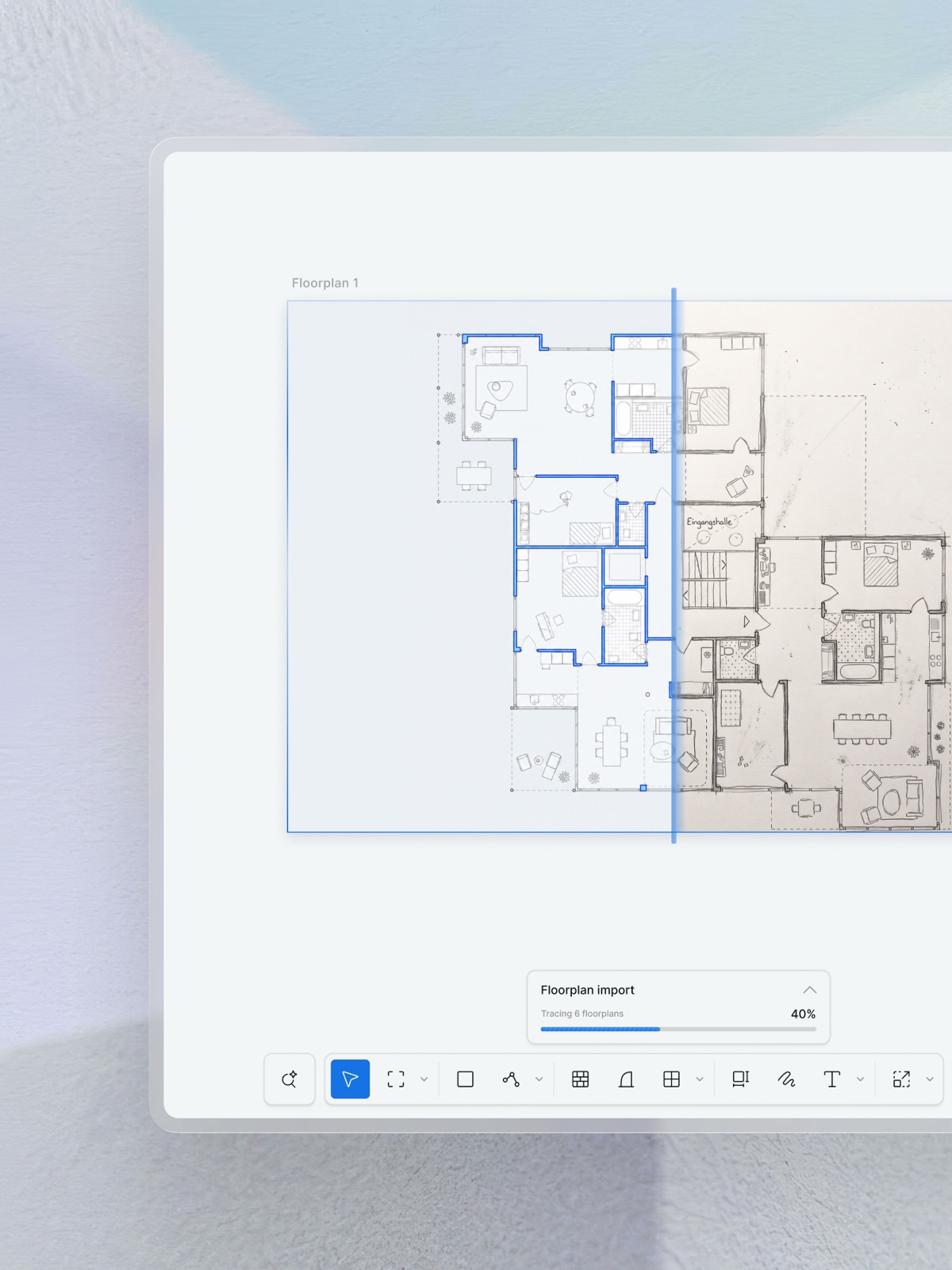
Synaps documents a tracing route for plan images and PDFs. Import the source, choose Trace where offered, and review the detected regions. Retain only the plans you intend to reconstruct. In a multipage file, review every page. The final operation can include all retained regions, even if you have highlighted just one.
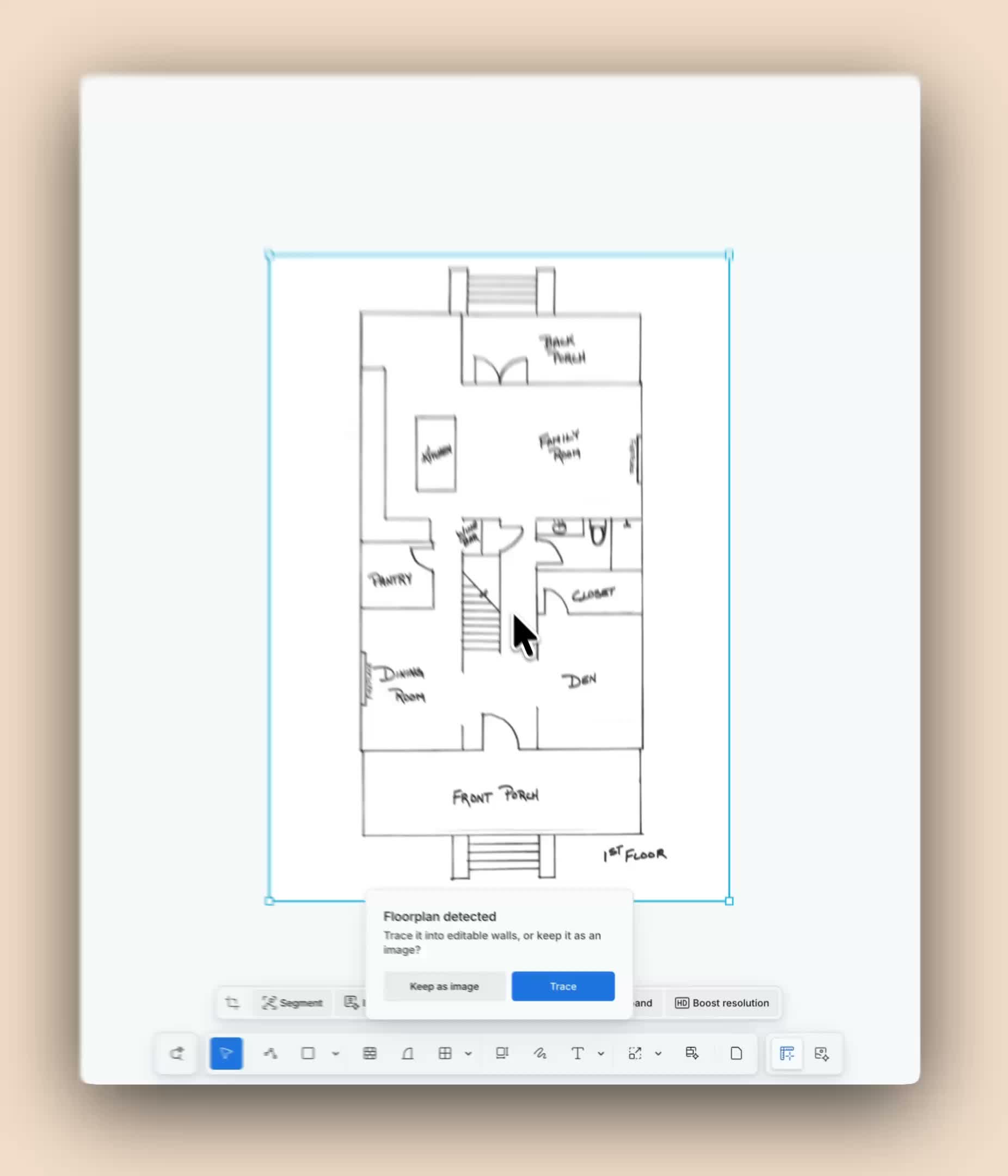
After tracing, compare the editable result with the source reference. Check the perimeter, wall connections, openings and room layout. Correct omissions before you begin changing the design. Follow the current tracing instructions for supported inputs and controls.
Keep a measurement record
Use a small worksheet to distinguish dimensions you have checked from assumptions you have carried forward. The following numbers are illustrative and were not measured in Synaps.
| Check | Reference length | Traced length | What to investigate |
|---|---|---|---|
| Overall inside width | 10.00 m | 9.80 m | The drawing may need a scale correction. |
| Overall inside depth | 8.00 m | 7.84 m | The same ratio supports investigating a uniform scale issue. |
| Bedroom width | 3.60 m | 3.40 m | This differs from the overall ratio; inspect the room's geometry. |
For a uniform error, the mathematical correction factor is the reference length divided by the measured drawing length. Here, 10.00 / 9.80 = 1.020408. This is an explanation of the arithmetic, not an instruction to enter a percentage into a product control.
Applying that factor to the illustrated bedroom width gives about 3.47 m, still short of 3.60 m. A whole-drawing scale correction would not resolve that local discrepancy. Possible causes include different measurement endpoints, source distortion or a misplaced wall. Investigate before moving geometry.
Synaps's documented tracing review does not calibrate the output from a distance entered in that review. Its guidance calls for measurement and, when necessary, a separate Scale operation. Check the current controls, then measure again. Tracing scale guidance
To apply a scale correction using the documented controls, select the content, press S, choose the base point and a second point defining the source length, then enter the intended target length in L. L is a length in the displayed unit, not a percentage. Measure again. Use item properties for an individual wall thickness or opening width instead of resizing the whole drawing. Scale controls
Check the edit you actually need
A useful tracing result should support the next decision in your project. Test that decision before committing to a tool.
If you need to compare kitchen arrangements, try moving the relevant partition and placing the required furniture. If you need a property marketing plan, check room names, readable dimensions and the intended image output. If another designer will continue in CAD, inspect the exported drawing in that designer's application.
After moving geometry, inspect nearby wall connections, openings and room boundaries. Review dimensions and leaders separately because they do not automatically follow moved geometry. Geometry-editing guidance
Keep unresolved information visible. Label a wall whose position still needs measurement. Distinguish an existing opening from a proposed one. Retain a checked existing-layout copy before developing alternatives.
Compare tools by the work required to reach a usable result
Use the same source, target output and acceptance checks for each tool. Record failed attempts as well as successful ones. A clean demonstration image alone is not a fair comparison with your own difficult scan.
Copy this worksheet into the project record:
| Record | Your result |
|---|---|
| Source file and date | |
| Intended next task | |
| Tool, version and plan | |
| Import and processing time | |
| Review and correction time | |
| Export and recipient-check time | |
| Missing or misplaced walls | |
| Missing or misplaced openings | |
| Checked dimensions and remaining differences | |
| Required manual redraws | |
| Processing credits or other variable cost | |
| Output accepted for the intended task? |
Decide what acceptable means before running the comparison. An early layout study and a measured drawing for professional issue have different requirements. Record the responsible reviewer's criteria rather than adopting a generic accuracy percentage from a product page.
One plan can establish whether a tool deserves a longer trial. It cannot establish that the tool performs equally well on every drawing. If your work includes poor photocopies, rotated plans or dense annotations, include those sources in a later evaluation.
Resolve problems before comparing alternatives
| Problem | Next check |
|---|---|
| No plan is detected | Try a clearer source or keep the image as a reference for manual drawing. |
| A portion of the footprint is missing | Check the region bounds against the whole source. |
| One opening is missing | Compare it with the source and correct that part of the drawing. |
| Overall dimensions disagree | Check scale against a known length, correct it and measure again. |
| Different parts show different errors | Inspect source distortion, endpoints and local geometry. |
A clearer upload may help with detection. It is not a guarantee of correct reconstruction. For a local error, a direct correction may be more useful than repeating the full trace. Check the displayed credit cost before a new submission. Tracing troubleshooting
Open the export before you hand it over
Synaps documents PDF, DXF, PNG and JPEG exports from drawing sheets. Inspect the actual output for missing content, line weights, text and image quality. A PDF that looks right does not establish that its DXF counterpart will meet the recipient's editing needs. Drawing export guide
Check access requirements before starting a paid workflow. The current pricing table lists DXF import and export under Pro and Studio.
When is the plan ready to use?
The plan is ready for its next task when you can explain what has been checked, what remains uncertain, and whether the output works where you need it. Tracing an old drawing does not establish the building's present condition. Resolve that separately when the project depends on it.
To evaluate Synaps, choose one plan you have permission to use, define the intended output and complete the worksheet. Start with the floor-plan tracing guide, then judge the result after review and correction.
For the next design stage, use the checked drawing within the Synaps drafting and design workflow.