Redline drawings are marked-up copies of an issued sheet, and they work when every markup is owned, tracked and closed against a numbered revision. Picture a design lead with the engineer's marked-up PDF, three client emails and a reissue of the ground floor plan promised for Friday.
Comments rarely go wrong in the review itself. They go wrong between the review and the reissue. A cloud goes unanswered, a phone call is never written down, or a fix lands on last month's sheet. This guide covers who makes redlines and the conventions offices publish. Then it shows how to write a markup the drafter can act on, and how to log and close each comment.
Key takeaways
- A redline is a markup on a copy of an issued drawing that says what must change. The drafter acts on it and a checker closes it.
- Use red for changes, strike through deletions and keep a second colour for questions. Agree the colours across the team.
- Put one comment in each markup cloud and point a leader at the exact element. Write the change in words, with units.
- Give every comment a number, an owner and a status in one log. Close it only against the revision that carries the fix.
- On the reissued sheet, cloud the change, tag it with the revision number and record it in the title block revision box.
- Mark up the current revision only, and write every verbal change into the log before anyone draws it.
What a redline drawing is and who makes one
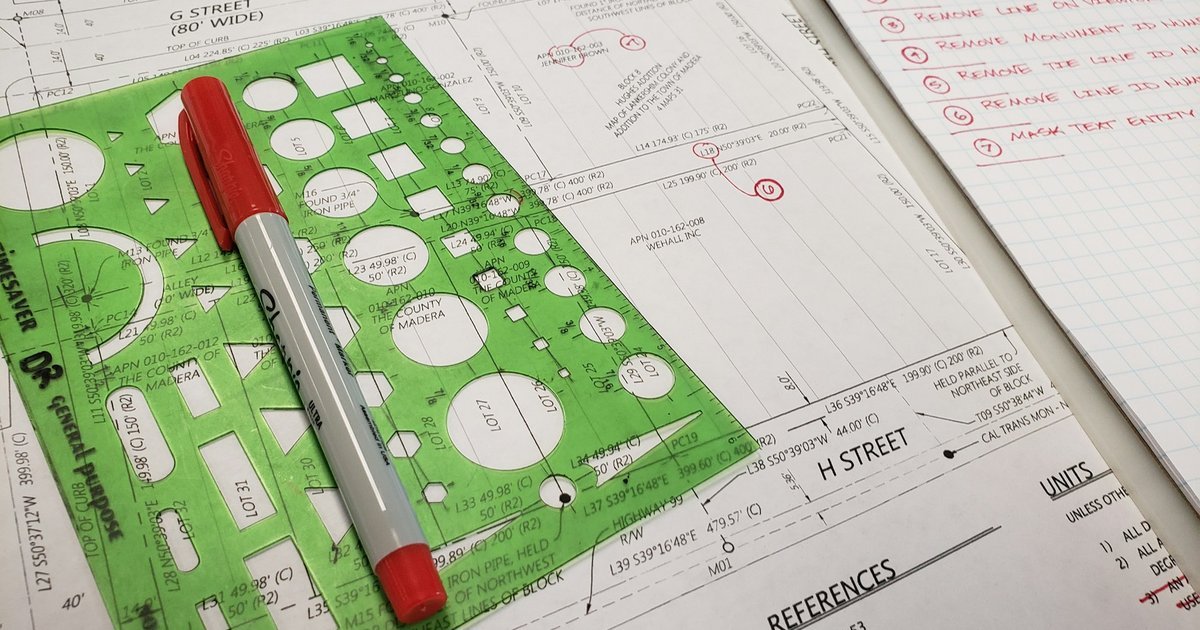
A redline drawing is a copy of an issued sheet with the required changes marked on top. The issued drawing underneath stays untouched. The marks tell whoever revises the sheet next what to change, where and why.
Four groups produce most redlines, and each needs slightly different handling:
- Internal check: a senior architect or the principal marks a sheet before it goes out.
- Consultant review: the structural or services engineer marks clashes, sizes and setting-out on your sheets.
- Client review: the client marks changes and questions, often mixed with preferences that need a conversation first.
- Contractor redlines: the contractor marks what was actually built, so the record drawings can be updated.
The first three feed your next design revision. Contractor redlines feed the record set, and some owners specify how that set is kept. Chicago Public Schools' record documents specification tells the contractor to "Maintain one set of blue- or black-line white prints of the Contract Drawings and Shop Drawings." The guide to as-built drawings and contractor redlines covers how those marks become the record set.

A useful test for any redline comes from a 2009 South Carolina DOT manual for as-built plans. The manual says "There is no 'one way' to red line plans" and asks whether "someone unfamiliar with the project" could easily tell what was built. That test was written for highway as-builts. A design comment should pass it too: could a drafter who missed the meeting act on the mark?
Colour and symbol conventions for redlining drawings
The as-built and record specifications below all mark changes in red. Beyond that, practice varies by office and by owner. Agree your team's set and write it into the office standard.
The SCDOT manual gives the plainest rule for additions and deletions: "Simply write in red items added to the plans and strike through items which were deleted and write 'deleted' next to the item." A strike-through is clearer than a circle, because a circled element can read as a question.
Owner specifications for record drawings add further colours for different kinds of work. Duke University's project record documents section says to "use other colors to distinguish between variations in separate categories of work." That rule was written for contractors marking a print in pencil. Design teams can borrow the logic.
For design review, keep red for what must change and use a second colour, such as blue, for questions and notes. A query then never looks like an instruction. Whatever colours you pick, the drafter should never have to guess whether a mark is a change or a question.
A markup round needs three symbols. Draw a cloud around the area that changes and run a leader from the comment to the exact element. Then tag each cloud with a number that matches the comment log.
In Synaps, a markup cloud is a closed polyline (P, then click back on the start point) with a red hex stroke set to Dash.
How to mark up drawings so the drafter can act on them
Write each markup for the drafter who was not in the review. That person has the sheet and the log, and nothing else. Five habits make a comment usable:
- One comment per cloud. Two changes inside one cloud tend to get half done, so split them and number each.
- A leader to the exact element. Point at the wall, door or dimension that changes, not at the room around it.
- Words over sketches. Write the change as a sentence, and sketch only where the geometry needs it.
- Dimensions with units. Give the new value, the unit and the point the dimension runs from.
- The current revision. Mark up the latest issued revision and write its number on the markup.
Comments that follow these habits read like instructions:
- "Move door D04 300 mm north to clear the column."
- "Change the ceiling height in WC 02 to 2400 mm."
- "Query: is the rooflight fixed or opening?"
Each one names the element and the change, or asks a single question the drafter can pass on.
Dimension changes need the most care, because a new value means little without its reference. Say which string changes and which end stays fixed. For the dimension strings themselves, see the guide to floor plan dimensions.
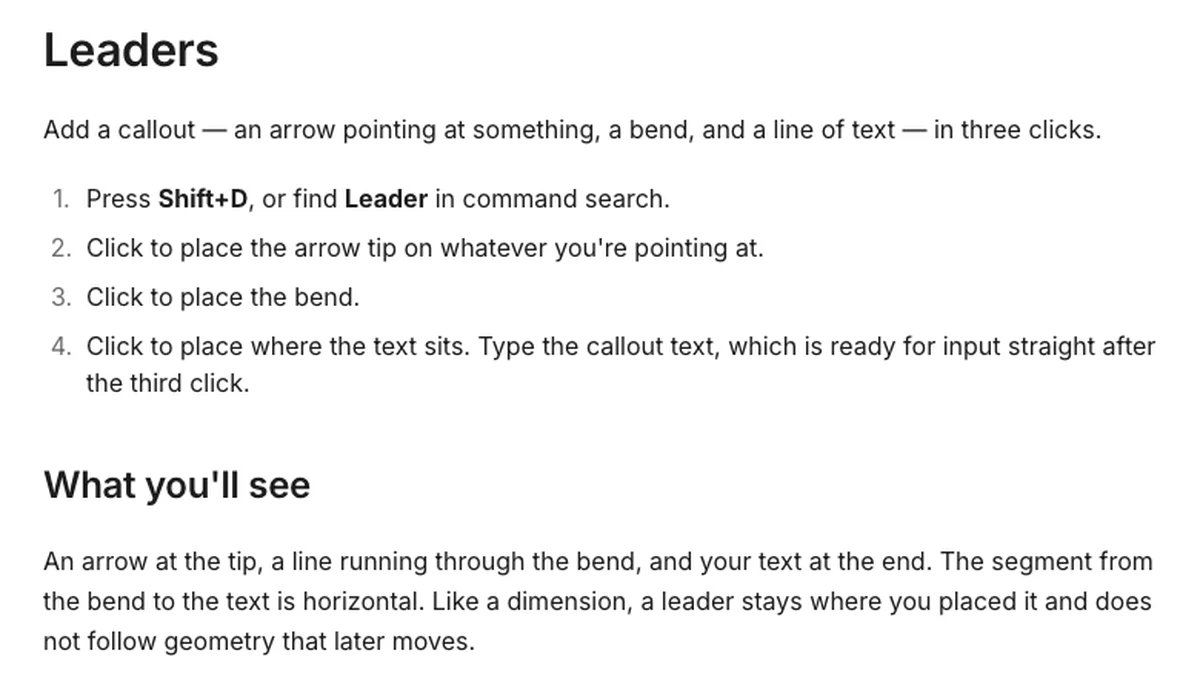
In Synaps, press Shift+D and a leader callout takes three clicks: the arrow tip on the element, the bend, then where the comment text sits.

Keep a comment log and close every comment
A comment log turns a pile of markups into a list someone can finish. Keep one log per review round, or one per job if rounds overlap. For the design lead with Friday's reissue, the engineer's PDF and the three client emails go into the same log. Each row needs a number, the sheet, the comment, an owner and a status that ends in the revision that closed it.
| No. | Sheet | Comment | Owner | Status |
|---|---|---|---|---|
| S01 | A101 | Move door D04 300 mm north to clear the column | JM | Closed in P03 |
| S02 | A201 | Show the steel beam over the kitchen opening | JM | Drafted, awaiting back-check |
| C01 | A101 | Query: is the rooflight fixed or opening? | AK | Open, answer due from client |
| C02 | A102 | Change the ceiling height in WC 02 to 2400 mm | AK | In progress |
Close the loop in four steps, and give each step its own status in the log:
- Pick up. The owner reads the comment, asks the reviewer about anything unclear and marks it in progress.
- Draft. The owner revises the drawing and marks the comment drafted.
- Back-check. Someone other than the drafter compares the revised sheet with the original markup, comment by comment.
- Close. The checker closes the comment and records the revision that carries the fix.
Do not reissue a sheet while a comment against it is still open, unless the log says why.
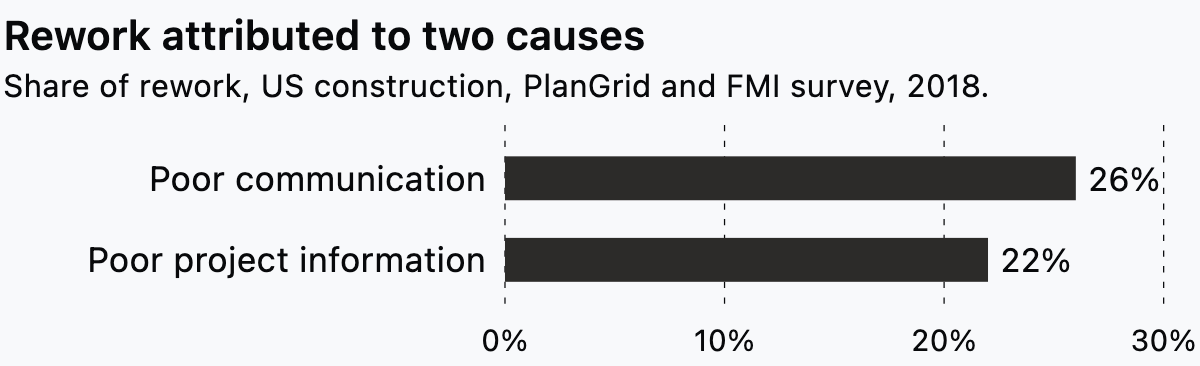
Closing comments matters beyond a tidy log. In a 2018 PlanGrid and FMI survey of construction leaders, respondents attributed 26% of rework to poor communication between team members. They put a further 22% down to poor project information.
The respondents were contractors, specialist trades and owners, and the survey looked at jobsites rather than design studios. Even so, a comment that never reaches the drawing becomes poor project information once the sheet is on site.
Send the revised sheet back to the reviewer who raised the comments, with the closed log beside it. In Synaps, share the project with the consultant as Viewer for read-only access, or export the paper as one combined PDF.
Revision control on the reissued sheet
The reissued sheet has to show what changed, in which revision, and where that revision is recorded. Rutgers University's CAD standards manual says revised areas "shall be clouded and tagged with a delta triangle". It adds: "The revision number in the triangle must coincide with its revision in the revision list."
Cloud colour is where offices part ways. One US university standard, UC Irvine's CAD standards, wants revised areas "outlined in black (i.e. 'clouded')". That is a different colour from the red markups described above. Follow the owner's standard where one applies and your office standard elsewhere.
The same standard asks for "a single revision cloud and symbol to identify several changes" where possible. That sits comfortably beside one comment per markup cloud. Markup clouds help the drafter find each comment. Revision clouds tell the reader of the reissued sheet where to look.
Each revision also goes in the revision box, with its number or letter, the date, a short description and who checked it. The guide to the architectural title block and its revision box covers the fields around it.
Revision codes themselves vary. In the UK, UK BIM Framework guidance on ISO 19650 describes a P or C prefix: "P represents Preliminary (non-contractual) information containers." A job following that guidance might issue P01, P02 and P03 during design, then move to C codes for the contractual issue. Other offices number from 0 or use letters, so state the scheme in the office standard.
Digital markup versus paper prints
Red pen on a print was the original redline, and record specifications for contractors still describe pencil on paper. Most design review now happens on PDFs, with the same marks drawn in software. The Bluebeam Cloud help page, read October 2026, covers this. Its Cloud and Cloud+ tools "are generally used to call out or emphasize an area of your PDF."
Whichever tool you use, keep the markup separate from the drawing. The sheet underneath should stay exactly as issued, so anyone can see what the reviewer was looking at. Keep each round on its own layer or in its own file, named with the reviewer, the round and the revision it marks.
Owner specifications draw the same line for contractors. The Duke record documents section tells the contractor to "not use record documents for construction purposes", keeping the marked set apart from the working set. In design review, the equivalent is never drafting on the marked copy itself.
Flatten a marked-up PDF only when you send it to someone who should not move or delete the marks. Keep the unflattened file with the log, so the next round can build on it.
In Synaps, import the issued PDF as Image, a picture for reference, then lock it in Layers so the markup cannot move it. Each round of markups can then be grouped, renamed in Layers and hidden with the eye toggle when you want the clean drawing.
Four ways a redline round breaks down
Most lost comments trace back to one of four habits. Each has a plain fix you can write into the office standard.
Markups on an old revision
A reviewer marks P02 while the drafter is already working on P03. Some comments are already fixed, and others now point at geometry that has moved. Write the revision on every markup and compare it with the current issue before anyone picks up a comment. When a markup arrives on an old revision, move the live comments onto the current sheet first.
Comments with no owner
A comment addressed to "the team" tends to stay open. Assign every row in the log to one person when the round comes in, even if that person later passes it on. The job architect or the principal usually does the assigning.
Clouds that are never removed
Clouds from three revisions ago make every sheet look changed, and readers stop trusting them. UC Irvine's standard states that "Obsolete revision layers must be turned off once they are superseded by a new revision." Clear the previous revision's clouds when you issue a new one, and let the revision box carry the history.
Verbal changes never recorded
A client mentions a change on site, or a consultant agrees a beam size on a call. Nobody marks it, so it never reaches the drawing. Write every verbal change into the log with its source and date before anyone draws it. Then send that entry to the person who asked, so they can confirm the wording.
Run a markup round on the drawing in Synaps
Synaps publishes this article. Synaps is browser-based architectural design and drafting software, and the issued drawing and a round of markups can sit in the same project. To run a round on an issued sheet:
- Open the import menu, choose PDF and pick Image, a picture of the PDF for reference.
- Lock the imported sheet in the Layers panel, so it cannot be moved or resized.
- Press P and draw a closed polyline around each change, clicking back on the start point. Type a red hex value for the stroke and switch it to Dash.
- Press Shift+D, click the arrow tip on the element, click the bend, then click where the text sits and type the comment.
- Group the round, rename it in Layers and use the eye toggle to show or hide it.
- Draw a paper over the sheet and its markups, then share the project as Viewer or export the paper as one combined PDF.
Frequently asked questions
What is the difference between a redline and an as-built drawing?
A redline is the markup. An as-built or record drawing is the clean sheet produced from the contractor's redlines once the work is done. The SCDOT manual says "all red-line information shall be transferred to the new sheets" when a revised sheet replaces an as-built one. Some owners, SCDOT among them, accept the red-lined set itself as the as-built record. Nothing on the markup should be lost when the sheet is redrawn.
How should you number comments from several reviewers?
Give each reviewer a prefix and number their comments in sequence, such as S01 for the structural engineer and C01 for the client. The number then shows who raised a comment and stays unique across the log. Write the same number on the markup cloud and in the log, so the two always match.
What if you disagree with a comment?
Answer it in the log rather than leaving it open. Record the reason, discuss it with the person who raised it and close the comment as "no change" once they agree. A comment closed with no change and no reason tends to return in the next round.
Does a redline count as an instruction to change the work?
That depends on the contract and on who issued the markup. Follow the contract's procedure for instructions and changes, and your practice's QA procedure for reviews and sign-off. Where a markup's status is unclear, ask the issuer to confirm it in writing before you draw it.