Whether a PDF converts to DWG depends on what is inside it. A vector PDF holds lines, curves and text, and AutoCAD can import them as objects. A scanned PDF holds only a picture of a drawing. It needs tracing or redrawing instead.
So the first job is to find out which kind of PDF you have. Then you choose between converting, tracing and redrawing. This guide covers all three and the checks to run afterwards.
Synaps publishes this article and makes software that imports PDFs and exports DXF. This is a research-only guide, with no hands-on file testing by us. All sources were retrieved on 2 October 2026. Autodesk quotes come from the AutoCAD LT 2026 help.
Key takeaways
- Check the PDF first. Lines and text in a vector PDF can become CAD objects.
- AutoCAD's PDFIMPORT command brings in one page at a time. Save the result as DWG.
- Expect clean-up. Autodesk says dimensions, leaders, patterned hatches and tables arrive as many separate objects.
- For a scan, Autodesk says AutoCAD does not support raster-to-vector conversion. Trace or redraw it.
- Our suggestion: measure one known dimension after any conversion, before you draw on top.
Vector PDF or scan: check before you convert
Autodesk says that when a PDF is generated, "all supported objects are translated into paths, fills, raster images, markups, and TrueType text". It explains: "In PDF, paths are composed of line segments and cubic Bézier curves, either connected or independent." A Bézier curve is a smooth curve defined by control points. AutoCAD's importer turns those paths back into CAD objects (Autodesk, About Importing PDF Files).
A scanned PDF is different. Autodesk lists "PDFs containing only a raster scan of a design" among the files you might receive. A raster is a grid of pixels, like a photo.
Advice: four checks usually tell the two apart.
- Zoom in to 800% in a PDF viewer. Vector lines stay sharp. A scan turns into visible pixels.
- Try to select a word with the text tool. If you can, the PDF has live text. A scan that has been through OCR (text recognition) can also pass this test. Pair it with the zoom check.
- Look for a slight tilt, paper texture or coffee stains. Those come from a scanner.
- Ask the sender which software made the file. A plan printed straight from CAD is likely vector.
Our reading is that some PDFs are mixed. A vector plan can carry a scanned survey or a photo on the same page. Autodesk says the importer handles "geometry, fills, raster images, and TrueType text", so each part follows its own rule.
How to convert a vector PDF to DWG in AutoCAD
AutoCAD offers two ways to use a PDF. Autodesk says a PDF can be "attached to drawings as underlays", for reference. PDF data can also be "imported as objects, in part or entirely", which you can modify (Autodesk, About Importing PDF Files). For a DWG you can edit, you want the import.
Steps 1 to 6 follow Autodesk's Import PDF dialog box page (Autodesk, Import PDF Dialog Box).
- Run the PDFIMPORT command and choose the PDF. Autodesk notes: "You import a single page at a time."
- Pick the page. The dialog displays a standard page size, imperial or metric, and the PDF scale.
- Set the location, the scale factor and the rotation.
- Choose the data types to import: vector geometry, solid fills, TrueType text and raster images.
- Choose a layer method. "Use PDF layers" keeps the PDF's own layers. If the PDF has none, AutoCAD creates object layers instead.
- Set the import options, such as joining line and arc segments into polylines.
- Save the drawing as DWG.
Two settings deserve a second look. The first is "Infer linetypes from collinear dashes". Autodesk's description reads: "Combines sets of short collinear segments into single polyline segments." Those polylines get "a dashed linetype named PDF_Import". Autodesk warns: "The inference process is imperfect." It adds: "Turn this option off if you see dashed lines created from small regularly spaced line segments or underlined text." (Autodesk, Import PDF Dialog Box)
The scale needs care too. For PDF scale, the dialog page says: "Metric units are assumed to be in millimeters". Imperial units are taken as inches. It adds that importing a page "does not use the setting of the INSUNITS system variable since each page might be at a different scale". INSUNITS is AutoCAD's drawing units setting. Our reading is that the imported plan may not be at full size. Checklist step 1 covers this.
What changes when a PDF becomes CAD geometry
A converted PDF is not the original CAD file. Autodesk says that when a DWG is exported as PDF, "both information and precision are unavoidably lost" (Autodesk, About Importing PDF Files). Our reading is that importing the PDF does not bring that lost data back.
The table lists what Autodesk's About Importing PDF Files page says happens on import. The last column is our suggestion, not Autodesk's.
| In the PDF | After PDFIMPORT, per Autodesk | What to do (advice) |
|---|---|---|
| Curves | Circles and arcs if close enough, otherwise 2D polylines | Check door swings and curved walls |
| Dimensions, leaders, patterned hatches, tables | Many separate objects, "as if these objects were exploded" | Redraw key dimensions as real dimension objects |
| TrueType text | Preserved | Check the substituted font |
| SHX text | Separate geometric objects | Run PDFSHXTEXT, then check the result |
| Solid fills | "2D solids, or optionally as solid-filled hatches", with 50% transparency | Reset colour and transparency |
| Raster images | PNG files attached as external references | Send the PNG files with the DWG |
| Markups | Not imported | Keep the PDF for the comments |
Autodesk explains that DWG data is stored as "double-precision floating-point numbers, while the data in PDF files are only single precision". Autodesk lists where the loss is most noticeable. One case is "Computed locations such as tangent points, the endpoints of arcs, and the endpoints of rotated lines". Another is "PDF files that were generated with a low dpi (dots per inch) setting". Advice: check corners and wall joints where lines should meet exactly.
SHX text needs its own step. SHX is AutoCAD's own font format. Autodesk's PDFSHXTEXT page describes the command: "Converts the SHX geometry imported from PDF files into individual multiline text objects." (Autodesk, PDFSHXTEXT) The same page adds: "Objects that are not highlighted need additional attention." Advice: expect to retype some room labels.
Scanned PDFs: why you trace instead of convert
A scanned PDF has no lines to convert. Autodesk says "AutoCAD can import the raster image from a PDF, but it doesn't support raster-to-vector conversion" (Autodesk, About Importing PDF Files).
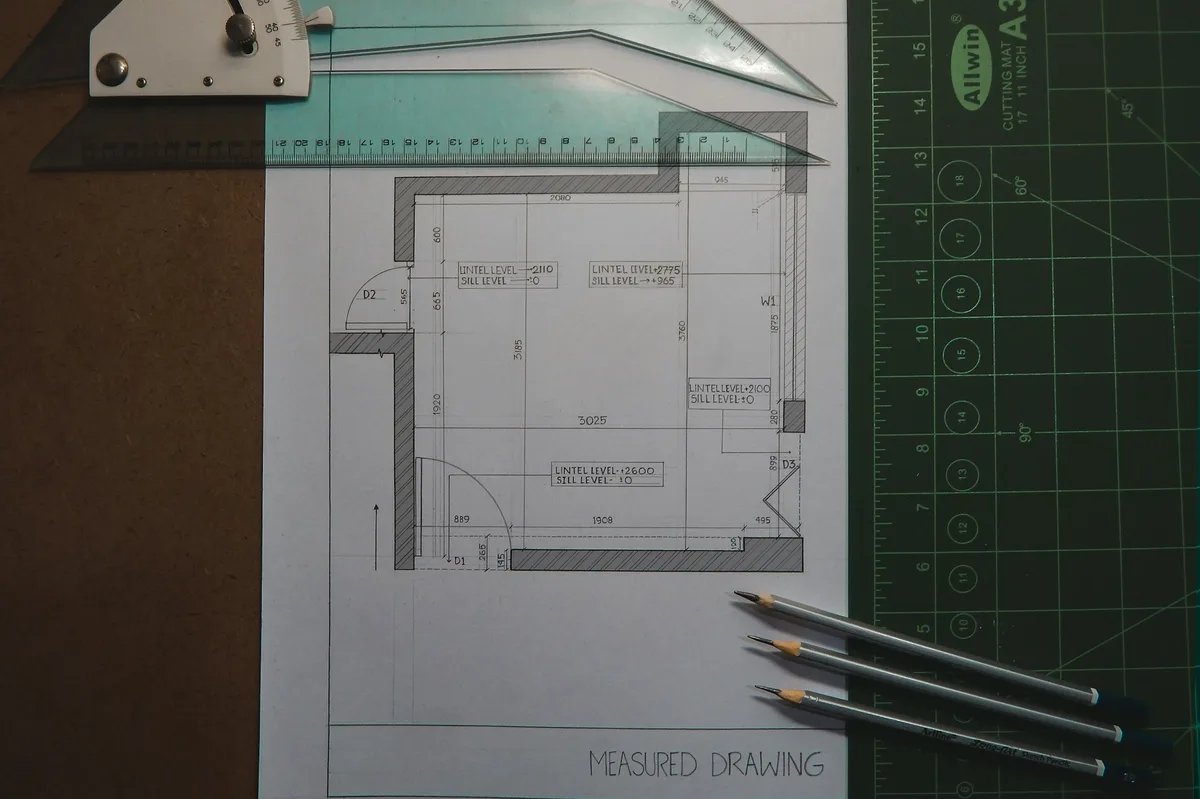
Specialised software can turn pixels into lines. Autodesk is cautious about the result. It says such conversion "cannot provide the same level of precision as objects created directly with AutoCAD".
The scan also limits what any tool can recover. One pixel covers a fixed width on paper. That width is 25.4 mm divided by the scan resolution in dots per inch. At a drawing scale of 1:100, that width covers 100 times as much of the building. The chart shows our arithmetic for common scan settings.
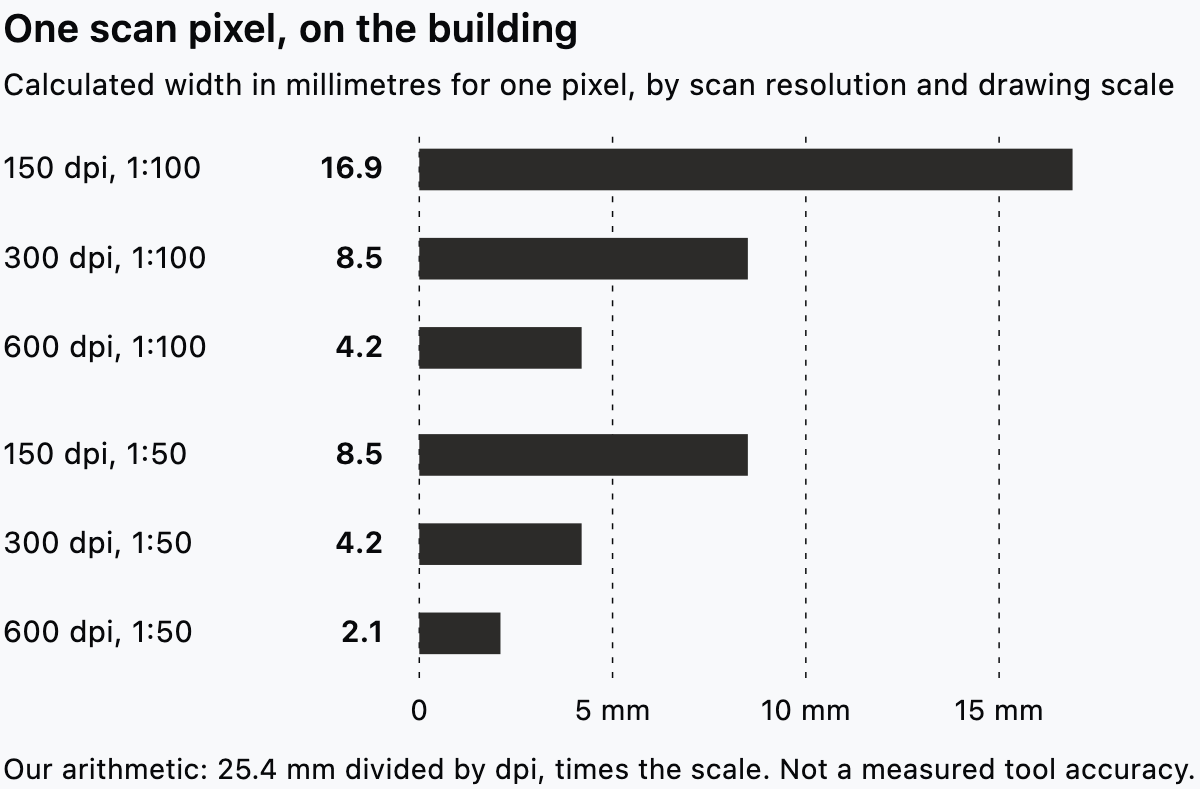
At 1:100, a 150 dpi scan records steps of about 17 mm on the building. A 600 dpi scan of the same plan records about 4 mm. Our reading is that a low-resolution scan cannot give you millimetre-exact walls, whatever tool you use. Advice: allow for paper stretch and a tilted scan too.
You have three practical routes for a scan.
- Redraw over it. Place the scan in your drawing and scale it. Then draw on a new layer.
- Use a raster-to-vector tool. For example, QCAD Professional lists a command line tool, bmp2dwg, to "trace bitmap files with polylines" (QCAD features). Our reading is that you get polylines, not walls or doors.
- Use floor plan tracing. Some tools rebuild walls and openings from the image. See our guide to turning a scanned floor plan into an editable drawing.
Autodesk also raises a non-technical point. For low-dpi or scan-only PDFs, it suggests "relying on a legal agreement with the originator that specifies terms of use and liability". Advice: if the drawing matters, ask the sender for the original CAD file first.
Converting without AutoCAD
AutoCAD is not the only route. The QCAD features page lists "import vector data and images from PDF" for QCAD Professional. Its command line tools also list "convert PDF to DXF / DWG" (QCAD features). The page marks both as Professional-only features. Our reading is that the same vector-or-scan rule applies.
Advice: free online converters exist too. Before you upload a client drawing, check whether your contract or the client allows it.
DXF can serve as a middle step. Autodesk calls DXF a format "often used to share drawing data between other CAD programs". It also says: "You can convert a DXF file to DWG format by opening the file and saving it in DWG format." (Autodesk, About Importing and Exporting DXF Files) So a tool that writes DXF can still lead to a DWG. You then need software that opens DXF and saves DWG, such as AutoCAD.
How Synaps handles a PDF
We checked the Synaps documentation on 2 October 2026. Per the import page, DWG is not an import option. The export page offers PDF, DXF, PNG or JPEG. A recipient who needs DWG can open the DXF in AutoCAD and save it as DWG.
When you import a PDF, Synaps asks what result you want. The docs describe each choice.
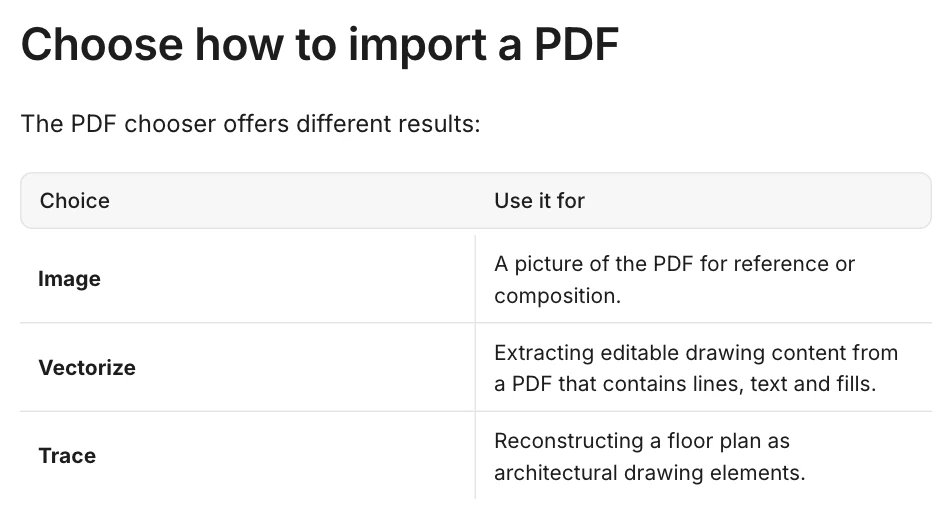
- Image: "A picture of the PDF for reference or composition."
- Vectorize: "Extracting editable drawing content from a PDF that contains lines, text and fills." Our reading is that this suits a vector PDF.
- Trace: "Reconstructing a floor plan as architectural drawing elements." Our reading is that this suits a scan.
The tracing page lists "JPEG, PNG, GIF, WebP and PDF" as inputs (Synaps docs, trace a floor plan). It says recognised walls, openings, rooms and furnishings can be adjusted with the drawing tools. For an overview, see the automated floor plan tracing page.
Synaps docs also state the limits. Image and PDF uploads have "a displayed 50 MB limit". Vector extraction and tracing "can have different access or credit requirements". The tracing page warns: "A separate trace may be charged for each plan, so review the full file rather than only the first page."
Check the size by hand. The tracing page says: "The trace review does not calibrate from a distance you enter." To correct the size, the import page points to the Measure and Scale tools.
For where Synaps sits next to CAD and BIM tools, see between AutoCAD and BIM.
Checklist after any PDF conversion
This checklist is our advice, built on the sources above.
- Measure one dimension you know, such as a door width or a grid line. Scale the drawing if it is off.
- Zoom into corners and wall junctions. Close any small gaps.
- Check curves. Door swings may have become polylines.
- Replace exploded dimensions you will rely on with real dimension objects.
- Check text. Convert SHX geometry with PDFSHXTEXT, or retype labels.
- Sort layers. Rename PDF layers to your office standard.
- Keep the original PDF next to the converted drawing. It holds the markups and shows the intended look.
Import a PDF into Synaps and choose Vectorize or Trace. Then run checklist steps 1 to 3 and 7 on the result.
Frequently asked questions
Can I convert a PDF to DWG without AutoCAD?
Yes, with some tools. QCAD Professional lists PDF to DXF and DWG conversion. Another route is a tool that imports the PDF and exports DXF. AutoCAD can then open the DXF and save it as DWG. Check which kind of PDF you have first.
Why does converted text come in as lines?
Text that used AutoCAD's SHX fonts is stored in a PDF as geometry. AutoCAD's PDFSHXTEXT command can turn it back into text, with some manual checks.
Is a converted PDF to scale?
Not always. Autodesk says PDF scale can be preserved, but PDFIMPORT does not use INSUNITS. Our suggestion: measure a known dimension and rescale if needed.
Can a scanned PDF become an editable DWG?
Not by import alone. Redraw it, run a raster-to-vector tool, or trace the floor plan.