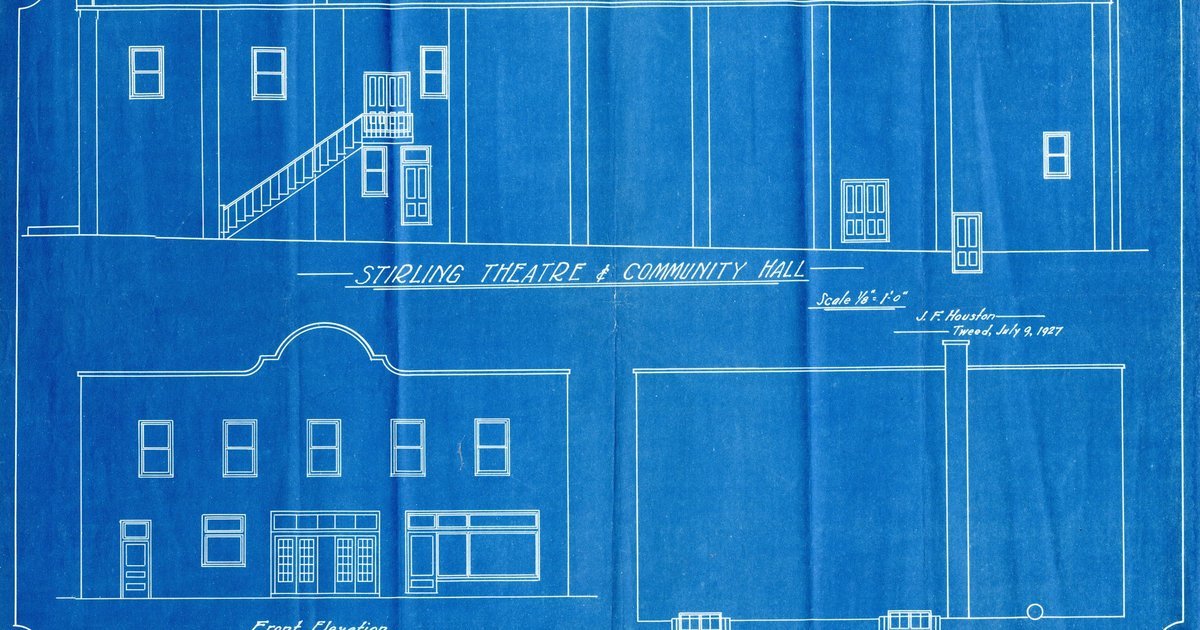
A JPG or photo of a plan holds pixels, not lines, and nothing in the file says how big the building is. Image to CAD is therefore two jobs. First rebuild the geometry, by tracing it, vectorising it or drawing over it as an underlay. Then set the scale from one dimension you trust and confirm it on a second. An online converter does only the first job, and on a plan it returns outlines rather than walls.
A client sends a phone photo of the 1970s extension plan from their loft folder, shot at an angle on the kitchen table. The sheet shows one figured dimension, a 3600 mm room width, and a faded scale note. The steps below take a photo like that to an editable drawing you can issue as DXF or PDF.
Key takeaways
- A JPG, PNG or phone photo has no scale and no vector lines. Image to CAD means rebuilding the geometry, then setting the scale.
- Online JPG and PNG to DXF converters return unscaled outlines and chains of short segments. They suit clean line art better than a plan you will design on.
- Shoot the sheet square-on, flat and evenly lit, with a known dimension in the frame, and crop to one plan.
- A 12 MP phone photo of a full A1 sheet covers about 21 mm of building per pixel at 1:100. A 100 mm wall is then about 5 pixels wide.
- Trace the image into walls and openings, vectorise clean linework, or keep it as an underlay and draw over it line by line.
- Scale from one trusted dimension, then confirm a second dimension, the footprint and the right angles before the drawing leaves the studio.
What a JPG or photo of a plan gives you
A raster image carries what the plan shows, but none of its geometry and none of its scale. Walls, doors and text are all coloured pixels on a grid. There are no layers, no wall entities and no line weights, only darker areas a few pixels wide.
A DPI value stored in an image only tells a printer how large to print it. The scale note on the sheet holds only if the photo is square-on and you know the print size. You rarely know the print size.
The content is still worth having. Room layout, wall positions, figured dimensions, door swings and the north point all survive. That is enough for a reliable drawing, as long as the scale comes from a dimension rather than the picture.
Before converting a picture, ask whether a better source exists. A PNG screenshot of a PDF has lost any vectors the PDF still holds. Ask for the PDF and follow the PDF to DWG workflow instead. For a paper original, the guide to turning a scanned floor plan into an editable drawing covers the scanner side.
What an online image to DXF converter gives you
Online converters such as Convertio, Vectorizer.AI and ImageToStl vectorise the picture. They turn areas of dark pixels into outlines and save them as DXF on their own servers. Vectorizer.AI says line art, sketches, logos and high-contrast graphics give the most practical results. It adds that busy photos often need cleanup before CAD or CNC use (Vectorizer.AI).
On a plan, three things follow. A wall comes back as the outline of a dark shape, with two edges and nothing between them. Curves become chains of straight pieces: ImageToStl builds curved areas from many small lines joined together (ImageToStl). Room names and dimension figures usually arrive as shapes, not editable text.
None of these converters reads a dimension, so the DXF still needs the scale step below. ImageToStl's Scale to Fit option sizes the whole image, which is not the same as scaling from a measurement. Use a converter when the image is clean line art and you need lines quickly. Before you upload a client's plan, read the service's retention terms. ImageToStl, for example, says it keeps the converted file for 4 hours.

Prepare the photo or image before you convert it
Most conversion problems start in the photo, so fix them before any software sees the file. When the client can reshoot, send them this list.
- Shoot square-on, with the phone parallel to the sheet and centred over it.
- Lay the sheet flat. Weigh down curled corners and take it out of any sleeve or frame.
- Use even daylight and no flash. Glare wipes out lines, and a shadow across the sheet can read as a wall.
- Keep a figured dimension or a scale bar in the frame.
- Fill the frame with the sheet, then crop to the one plan you need.
- Ask for the original file, since messaging apps often compress photos and soften thin lines.
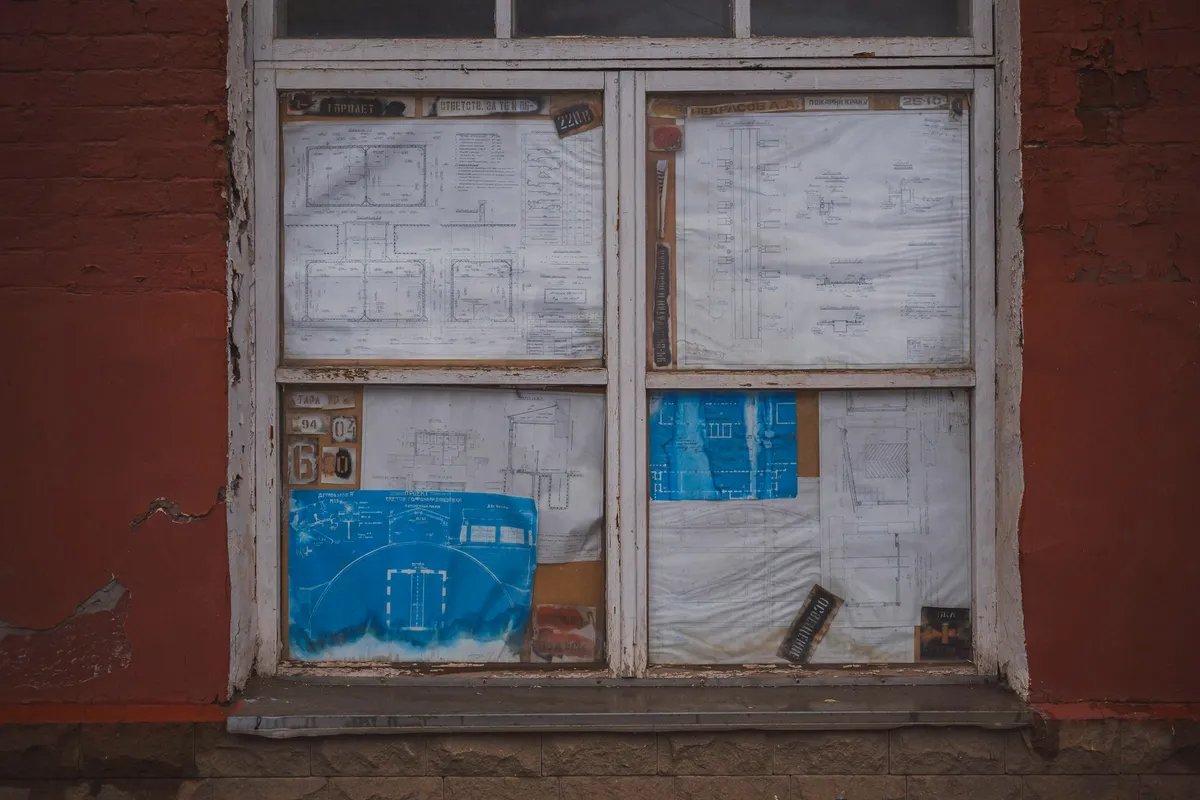
Phone lenses also bend straight lines near the edges of a wide shot. Step back a little and keep the sheet in the centre of the frame, where the bending is least. Fill the frame by moving closer, not by digital zoom, which costs pixels.
When a reshoot is not possible, rectify the photo in an image editor before conversion. The GIMP manual describes its Perspective tool as changing the perspective of a layer, a selection or a path (GIMP documentation). The same page notes that the tool does not impose perspective rules. In practice you move its corner handles until the sheet's edges run square to the frame.
Crop last, once the sheet is square. In Synaps, adjust, add or delete the highlighted regions so the trace leaves out the title block and any second drawing.
How much detail survives in a photo or scan
Pixel count sets the smallest thing a photo can show, and on a large sheet that limit arrives early. An Apple developer reference from 2017 gives 4032 × 3024 pixels (12 MP) as a back camera's maximum still image. An A1 sheet is 841 mm on its long side under ISO 216.
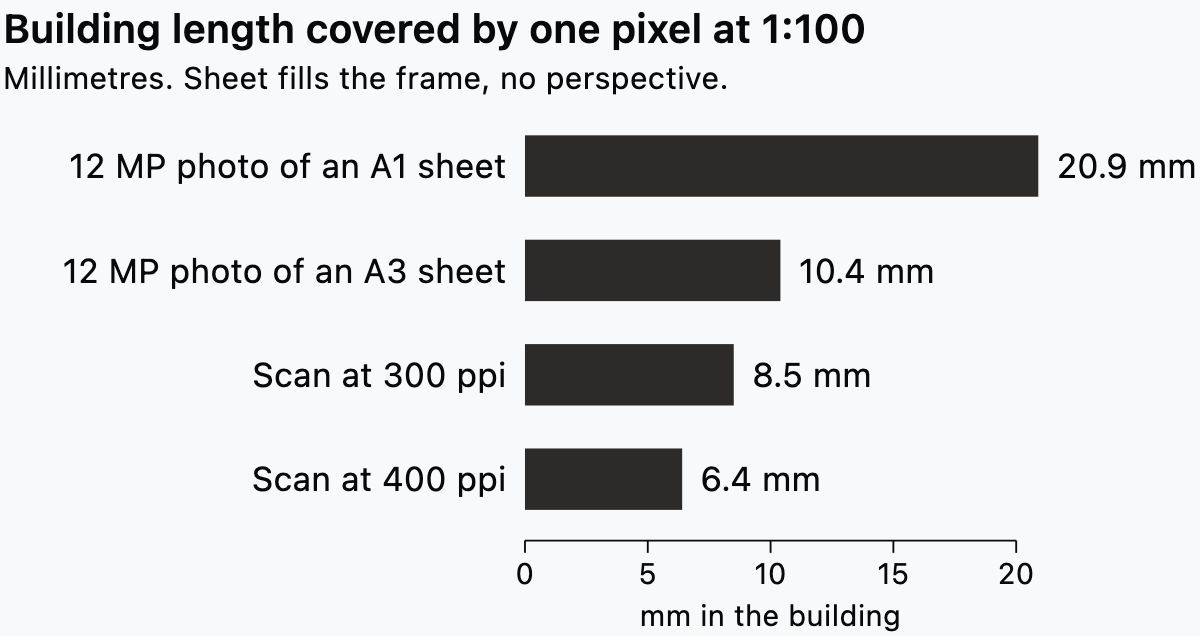
Read each bar with its condition: the sheet fills the frame edge to edge, with no perspective. A 12 MP photo of an A1 sheet then gives about 21 mm of building per pixel at 1:100. A 100 mm partition is about 5 pixels wide, with soft edges on both sides. Any margin around the sheet makes every pixel cover more.
A 1:50 plan photographed the same way gives about 10 mm per pixel, because the building is drawn twice as large. Smaller sheets help too, because each pixel then covers less paper, as the A3 bar shows.
The scan bars follow the FADGI guidelines for oversize maps and posters (FADGI, 2023). Those set about 300 ppi for 3-star capture and 400 ppi for 4-star. That is archival guidance for originals, used here as a benchmark rather than a rule for working scans.
Newer phones capture more: Apple lists a 48MP Fusion Main camera for the iPhone 17 (Apple). Look at the pixel dimensions of the file you actually received, because a forwarded photo is often smaller than the camera's maximum.
Three routes from image to CAD
Choose the route by what the image holds and what the drawing has to do next. All three end with the same scale step.
Trace into walls and openings
Tracing reads the plan as architecture and returns walls, doors and windows rather than loose lines. This route suits a legible plan of an existing building you are about to design on. In Synaps, drop the JPG or PNG on the canvas and choose Trace for editable walls and openings or Keep as image.
Traced walls, doors and windows in Synaps are edited with the same drafting tools as walls drawn line by line.
Vectorise the linework
Vectorising turns dark pixels into lines and arcs, with no idea which line is a wall. Autodesk's Raster Design help says its vectorisation tools can convert geometry and text in a bitonal raster image. Most image to DXF converters also start from black and white linework.
The Vectorizing Raster Entities page adds that the tools work best on bitonal images. One-pick selection and follower tools do not work with greyscale or colour photographs.
For a phone photo, that means a threshold step first: reduce the image to pure black and white, then vectorise. Clean ink linework survives that step. Pencil, shading and coloured fills tend to break into noise that needs cleaning and layering.
Inkscape, a free vector editor, does the same job on your own computer. Its Trace Bitmap command turns a raster image into paths. The Inkscape guide says the command works best on dark silhouettes in front of a bright background (Inkscape Beginners' Guide). Save a copy as Desktop Cutting Plotter (AutoCAD DXF R14) to get a DXF (Inkscape Beginners' Guide).
Clean the vectorised linework before you draw on it. In AutoCAD, OVERKILL removes duplicate or overlapping lines, arcs and polylines (Autodesk). PEDIT edits and joins polylines, and its Multiple option selects many objects at once (Autodesk). Then move walls, text and hatching onto their own layers.
Keep the image as an underlay and draw over it
The underlay route keeps the picture as a reference while you redraw the plan line by line on top. This suits sketches, faint or damaged sheets, and plans where most walls will change anyway. In AutoCAD, the Attach Image dialog has a field that specifies the scale factor of the selected image (Autodesk). Scale the underlay once before drawing, so every new line lands at true size.
The table sets the three routes side by side.
| Route | Best source | What you get | Main risk | Scale step |
|---|---|---|---|---|
| Trace | A legible plan, shot straight on and cropped | Editable walls, doors and windows | Skew or blur in the photo can carry into the walls | Scale the traced drawing from a known dimension |
| Vectorise | Clean black ink on a white sheet | Outlines and short segments on one layer | Noise, broken lines and text turned into shapes | Scale the vectors from a known dimension |
| Underlay | Sketches and faint or damaged sheets | Lines you draw yourself | A wrongly scaled underlay puts every line out | Scale the image before you draw |
Set the scale from a known dimension
Take the scale from a written dimension, never from the scale note or a ruler laid on the print. A figured dimension records a measurement or a design decision. A scale note assumes the sheet was printed at its original size, which a photo cannot show. For the loft photo, scale from the 3600 mm room width, not the faded scale note.
Pick the longest dimension you trust, such as an overall external length. An error of a few pixels at its ends then counts for less. Measure between the faces the dimension refers to, for example structural opening or finished wall.
AutoCAD calls this scaling by reference, which uses an existing distance as a basis for the new size (Autodesk). You give the current distance, then the size it should be. In Synaps, select everything, press S, click the two ends of the known wall, then type its real length in L and press Enter. Then measure a second known dimension to confirm the scale.
Once the drawing is at true size, choose the sheet scale for its use, as the guide to architectural drawing scales explains.
Check the drawing after conversion
Each check below compares your drawing with something that does not come from the image.
- Measure a second known dimension, ideally at right angles to the first. When both agree, the scale holds in both directions.
- Compare the overall footprint with a site plan, a survey or a measurement taken outside.
- Confirm that walls meant to meet at right angles do. A consistent skew points to a photo taken at an angle.
- Compare wall thicknesses. External walls of one build should read the same along their length.
- Add up the room dimensions along one side and compare the sum with the overall dimension.
When the checks disagree by more than the job can carry, stop adjusting and measure the building. An old plan shows what someone intended, which is not always what was built. The guide to as-built drawings covers that survey. For a specified survey, RICS publishes guidance on measured surveys of land, buildings and utilities.
Hand it on as DXF or PDF
Send DXF when the recipient needs geometry, and PDF when they need to read or print the drawing. A services engineer drawing over your plan wants DXF. A client approving a layout wants a PDF at a stated scale. In Synaps, place the plan on a paper at 1:100 or 1:50 and export DXF for a consultant's CAD, or PDF to print.
In practice, JPG to DWG means getting a DXF into AutoCAD and saving it there. The AutoCAD help on importing a DXF has you choose the DXF file type in the Select File dialog. Its SAVEAS command then saves the drawing in DWG format, for the current or a previous release. The guide to DWG vs DXF explains what changes between the two.
Which format each consultant expects is set out in the guide to CAD file formats.
How to do it in Synaps
Synaps publishes this article. The job: trace a JPG or PNG of a plan into editable walls and openings, set its scale, then export DXF or PDF.
- Drop the JPG or PNG onto the canvas. GIF, WebP and PDF are also supported inputs.
- When detected floor plans are offered, choose Trace, or Keep as image to use the picture as an underlay.
- In Import a floorplan, adjust, add or delete the highlighted regions so they cover the plan you want, then click Trace Floorplan.
- Select everything and press S for Scale. Click one end of a wall of known length as the base point, then the other end as the second point.
- Type the wall's real length in L and press Enter.
- Press Cmd/Ctrl+K, choose Measure and measure a second known dimension.
- Edit the traced walls, doors and windows with the drafting tools, and draw new walls line by line as the design moves on.
- Press F and draw a paper around the plan, then pick an ISO size and set the drawing scale to 1:50 or 1:100.
- Export the paper as DXF when the recipient needs drawing geometry, or as PDF for print.
Frequently asked questions
Can I convert an image to CAD online for free?
Yes, for clean line art. Free online converters turn a JPG or PNG into DXF outlines. On a plan, expect outlines rather than walls, text as shapes and no scale. Budget time for cleanup, or trace the plan instead.
Can I convert an estate agent's JPG plan to CAD?
Yes, for the room layout. Marketing plans are often redrawn for the listing and marked as not to scale, so take the scale from a dimension measured on site. You also need the right to reuse the plan.
Does a PNG convert to DXF better than a JPG?
Usually, yes. PNG compression is lossless, so thin lines keep sharp edges. JPG compression adds blocky artefacts around dark lines, which a vectoriser reads as noise. For PNG to DXF work, export the screenshot or scan as PNG at the source. Saving a JPG as PNG keeps its artefacts.
Can I convert a sketch to CAD?
Yes. Picture to CAD works the same way from a sketch, through the underlay or a trace. A sketch has no dimension you can measure, so scale it from one dimension you have fixed, such as the plot width from the site plan. Freehand lines rarely meet square, so straighten them as you redraw.
If your next job starts from a photo of a plan, sign up and trace it into editable walls.