Synaps combines architectural drawing with AI-assisted tracing, floor-plan generation and interior visualization. Start with the material you have and the decision you need to make. A scan needs reconstruction and measurement. A new layout needs a clear brief. A finish study needs an image whose relationship to the drawing is understood.
The documented workflows produce different outputs. Tracing reconstructs editable drawing elements. Generation proposes an editable plan. Camera rendering produces a separate image. Knowing which result you need helps you choose the next action and check it properly.
Start with a drawing you can inspect
Ask for the original drawing before reconstructing a scan. Synaps documents DXF import, while its current import menu does not offer DWG (yet). For PDFs, distinguish a scanned picture from a file containing vector drawing data. Image keeps a reference, Vectorize extracts drawing content, and Trace reconstructs architectural elements. These choices are explained in the import guide.
After tracing, compare the result with the supplied plan. Check the footprint, wall connections, openings and known dimensions before redesigning the space. Keep uncertainty visible. An old plan can help reconstruct a layout without proving the building's current condition. For the procedure, see the scanned-plan workflow.
Develop options around a specific brief
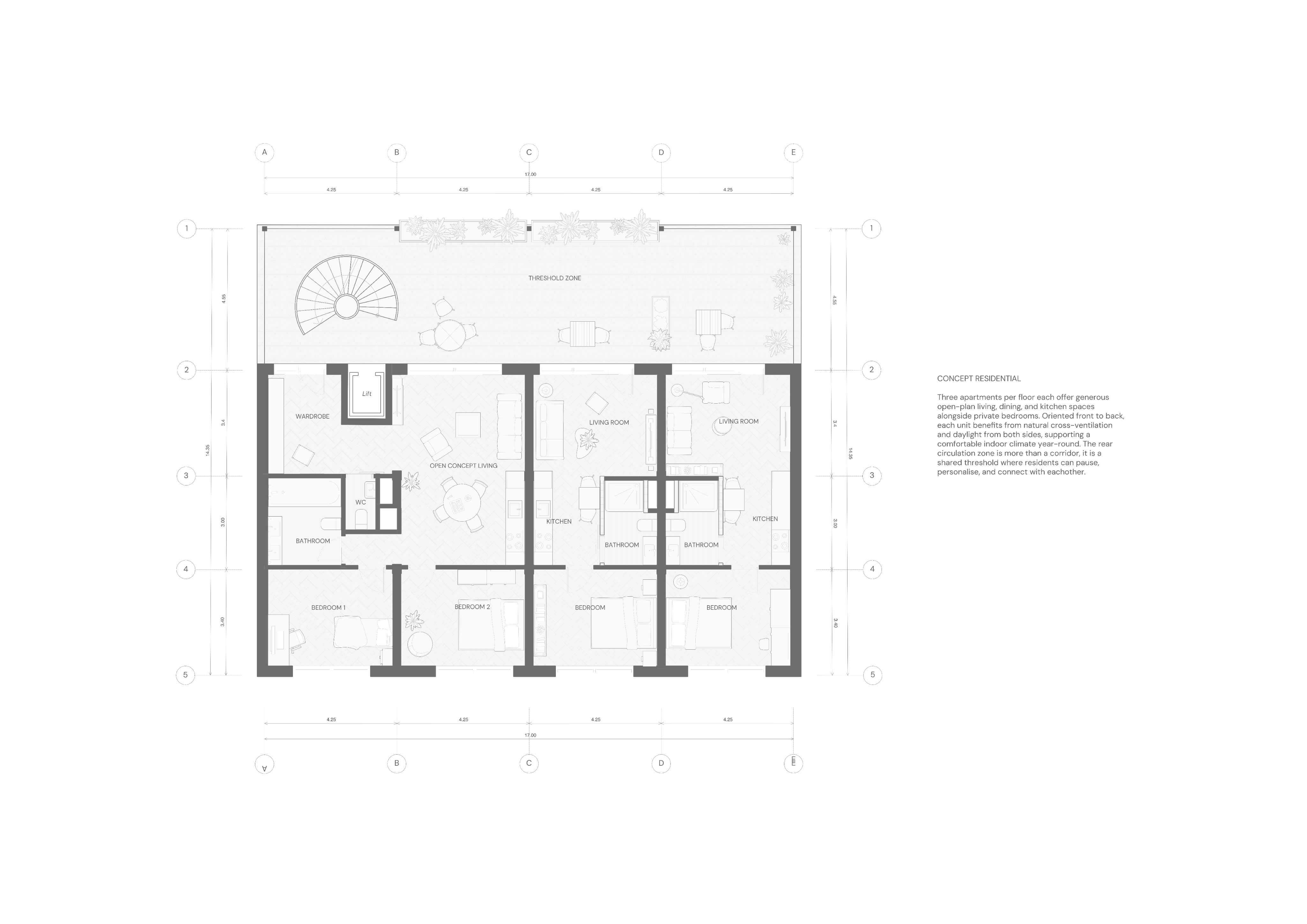
Consider a hypothetical apartment renovation. The client wants a more open kitchen and living area, better storage and a bedroom separated from the entrance. Keep a checked existing-layout copy, then develop alternatives with clear labels. One option might keep the kitchen where it is; another might change a partition to make space for entrance storage.
If you are exploring a new arrangement, use generation with a written brief. Synaps can use a closed rectangle or polyline larger than 20 m² as a boundary. Describe the rooms and their relationships, generate the plan, and compare the result with the fixed conditions. An outline alone does not communicate an existing column, service connection or immovable entrance. The boundary-generation tutorial explains the sequence.
The generated plan remains editable. Moving its original boundary afterwards does not reshape it automatically. Refine the plan itself or use a revised boundary for a new submission. Check adjacent geometry after each change, and review dimensions separately because annotations do not automatically follow moved geometry. Geometry controls
Use images to discuss visual decisions
A drawing helps establish whether an arrangement fits. An interior image helps discuss materials and appearance. Synaps documents placing and aiming a camera, choosing a style or prompt, and generating an interior image. Compare openings, furniture and proportions with the drawing before using that image in a review. Camera-rendering guide

You can explore finishes through image editing. Record the accepted material choice in the drawing or specifications where needed. An image edit does not automatically revise the plan, and a drawing edit does not automatically refresh an existing generated image. See the finishes workflow and the detailed image-editing article.
Use a decision worksheet on one project
Here is a second hypothetical task: compare two arrangements for a street-level office with a fixed entrance, a meeting room, desks and storage. This worksheet is an evaluation method, not a report of a product test.
| Decision | Check | Action if unresolved |
|---|---|---|
| Keep the entrance | Compare its position with the source plan and confirmed measurements. | Mark its position for verification. |
| Place the meeting room | Follow the route from the entrance and inspect the door arrangement. | Revise the layout before presenting it. |
| Arrange the desks | Check actual furniture dimensions against the drawing. | Obtain dimensions or change the arrangement. |
| Choose a floor finish | Compare image alternatives and record the selected material. | Label the image as a visual study. |
| Hand over the drawing | Open the required export in the recipient's application. | Resolve missing or altered content before handoff. |
Add the source of each measurement, the responsible reviewer and any unresolved assumption. For each option, name the decision it answers. Two unlabeled variations are harder to review than two proposals with an explicit difference.
Prepare the output the next person needs
For drawing-sheet delivery, Synaps documents PDF, DXF, PNG and JPEG. Check the actual export in the receiving application. A visually correct PDF does not establish the editing quality of a DXF, and a drawing export does not create a coordinated BIM model. Export guide
Check access before starting. DXF import and export require Pro or Studio according to the current pricing table. AI actions have their own displayed costs; a new generation or image edit may be another operation. Credit guide
Use Synaps to evaluate a defined drawing or design task. If the project requires coordinated discipline models and model-based deliverables, retain the appropriate BIM workflow. Choose one source plan or brief, open Synaps, and judge the result after the necessary edits and handoff checks.