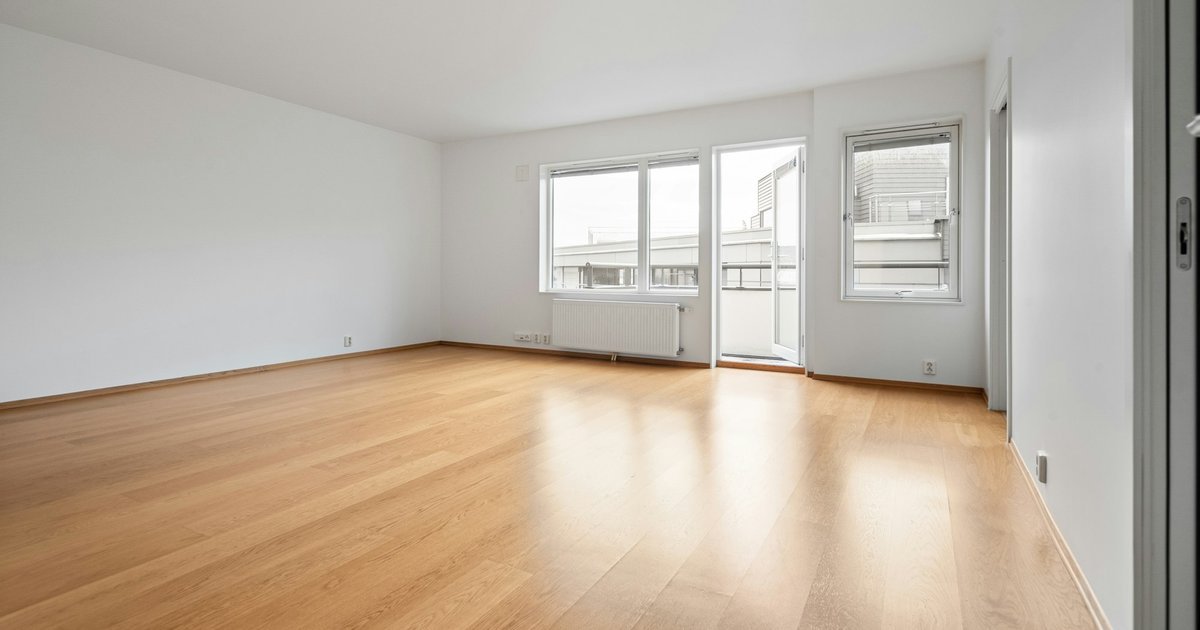
The first interior image rarely ends the design conversation. A client wants to see a warmer floor. The architect wants to compare two upholstery finishes. A developer asks whether a different furniture direction would make the space feel more welcoming.
Architectural post-production turns those questions into visual alternatives. In Synaps, you can edit an image with a written instruction, target individual surfaces and objects, apply reference finishes, replace furniture, remove unwanted content and prepare the result for presentation.
This guide covers the documented image-editing tools and how to combine them in a practical workflow, from the first render or imported image to a focused client review.
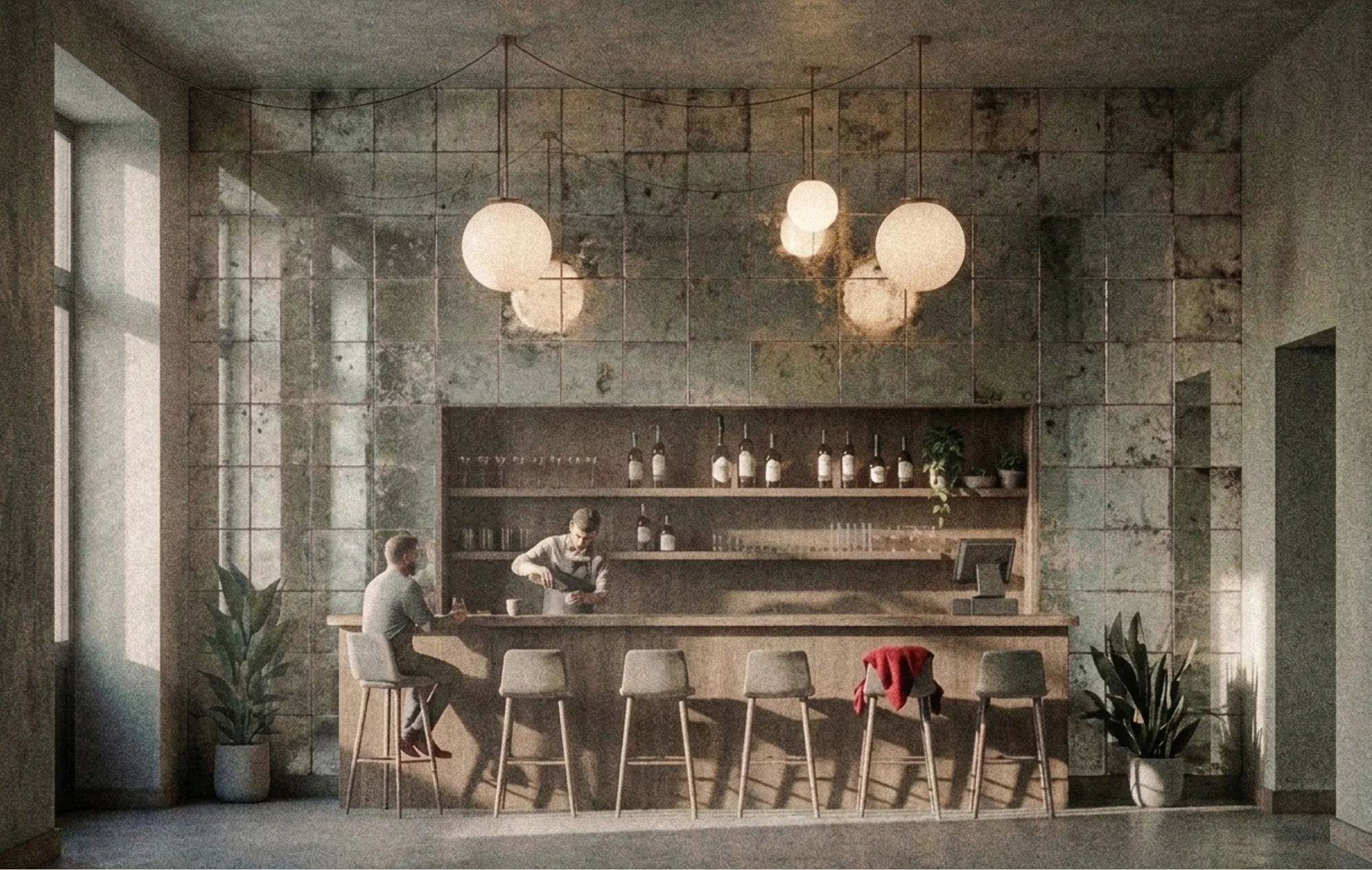
What architectural post-production changes
Here, post-production means developing an existing architectural image: its finishes, furnishings, atmosphere, composition and presentation detail.
You can start with an imported interior image or create an image from a camera in your Synaps drawing. The resulting visual is a separate canvas item. Image edits do not automatically update the floor plan, replace its furniture assets or change its material specifications. When a visual decision is approved, carry that decision back into the project information.
The same distinction applies in the other direction: changing the drawing does not automatically refresh a previously generated image. The Synaps image workflow guide explains how to move between visual exploration and drawing development.
Start with a useful source image
Choose a view that clearly shows the surfaces or objects under discussion. A floor hidden behind furniture gives you less useful information for judging a flooring alternative. A chair visible only at the edge of a frame is a poor starting point for comparing furniture.
To bring in an existing image, open Import and choose Image. To create an interior render from a drawing, place and aim a Camera, select it, choose a style or No style, add a prompt if needed, and click Apply. Check the generated openings, proportions and furniture before beginning post-production. See image import and camera rendering.
Keep an untouched copy before editing. Many image actions replace the selected image, so separate copies make comparisons easier. Label alternatives by the design decision they show, for example, “Original,” “Warm floor” and “Warm floor + neutral upholstery.”
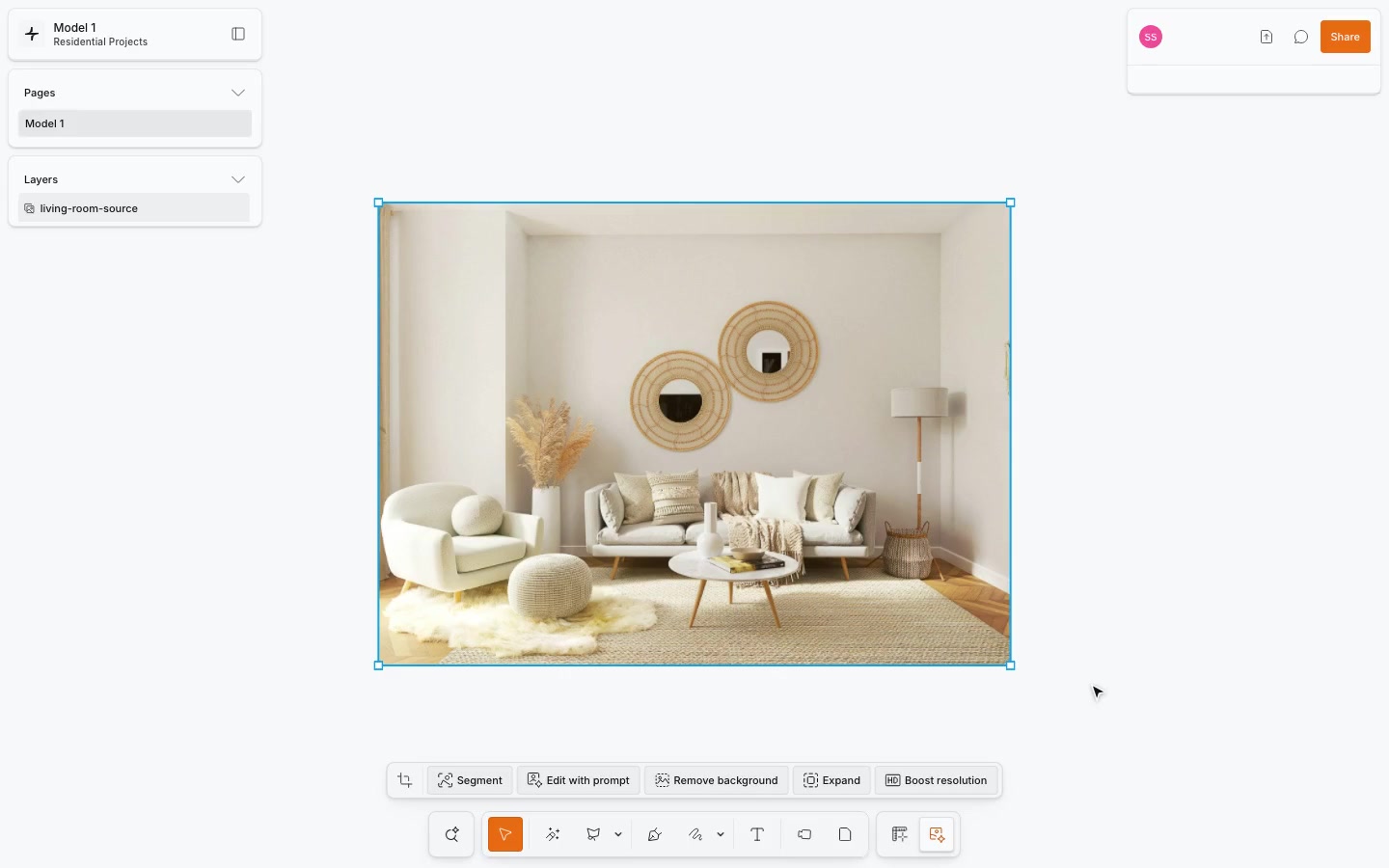
Choose the tool by the revision you need
| Client or design request | Synaps tool |
|---|---|
| Explore a different overall atmosphere | Edit with prompt |
| Add or change something in a manually selected area | Lasso selection + Edit with prompt |
| Target a detected object or surface | Segment; Re-segment when detection needs updating |
| Try another wall colour | Change paint |
| Test a wallpaper reference | Add/Change wallpaper |
| Compare wood, tile or stone flooring | Change Flooring |
| Change an object's finish or upholstery | Change Material |
| Try a different furniture piece | Replace Element |
| Change the image within wall artwork | Change Art |
| Explore a different carpet pattern | Change Pattern |
| Show a supported light or electronic object on or off | Turn On/Off |
| Remove a detected object and fill its former location | Erase |
| Create an object cutout and reconstruct the scene behind it | Isolate |
| Remove an image's background automatically | Remove background |
| Extend the composition beyond its edges | Expand |
| Enhance image detail for presentation | Boost resolution |
The actions available for a detected region depend on its category. A floor, carpet and paintable wall can expose different controls. The AI tool chooser is a useful reference when selecting a workflow.
1. Use prompts for broader visual changes
Select one image with Select (shortcut V) and choose Edit with prompt. Describe the change and the context you want retained.
For example:
Give this living room a softer evening atmosphere with warm lighting and muted textiles. Retain the room geometry, window positions, furniture arrangement and camera viewpoint.
This is useful when the design question concerns the overall mood or palette. Instructions to retain content guide the edit; compare the complete result with the original to see whether surrounding details changed.
For a more local request, make a selection with Lasso, then use Edit with prompt for that area. An example instruction is:
Add a low-pile, warm grey rug within the selected area beneath the coffee table. Keep the surrounding furniture and visible floor unchanged.
A manual selection is useful when you want to add something to an empty area or when automatic detection does not identify the intended target. It is separate from Isolate, which creates an object cutout. Read the prompt-editing guide.
2. Use segmentation for targeted revisions
Select the image, click Segment, and wait for detection. Move the pointer across the image to inspect highlighted regions and their labels. Click the intended object or surface, then choose an available action.
Selecting a region does not change the image. It identifies the content for the next operation.
Check that the highlight covers the intended area before submitting an edit. If a later replacement changes an object's outline, use Re-segment when the old detection no longer matches the image. There is no need to assume that every edit requires fresh detection; inspect the current highlight first.
This gives you a practical way to work through a client's comments one decision at a time. Read the segmentation guide.
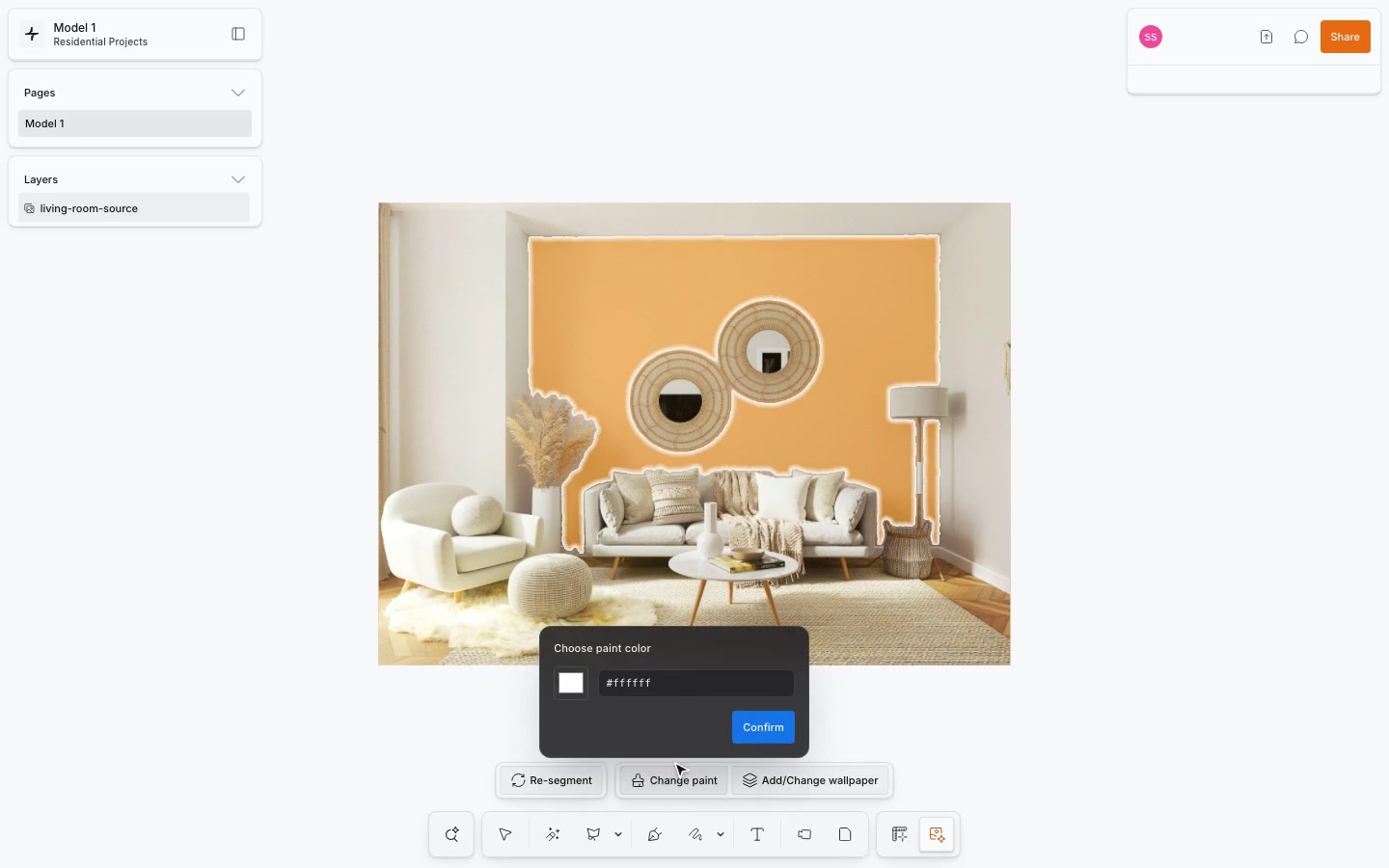
3. Compare paint, wallpaper and flooring
Change paint
Select a detected paintable surface and choose Change paint. Use the colour picker or enter a six-digit hexadecimal colour value, then click Confirm.
Compare the new colour beside the floor, furniture and adjacent surfaces. Inspect shadows and the edges of the painted area as well as the colour itself. A visual colour study helps narrow a direction; physical samples remain useful for the final material decision. Paint guide.
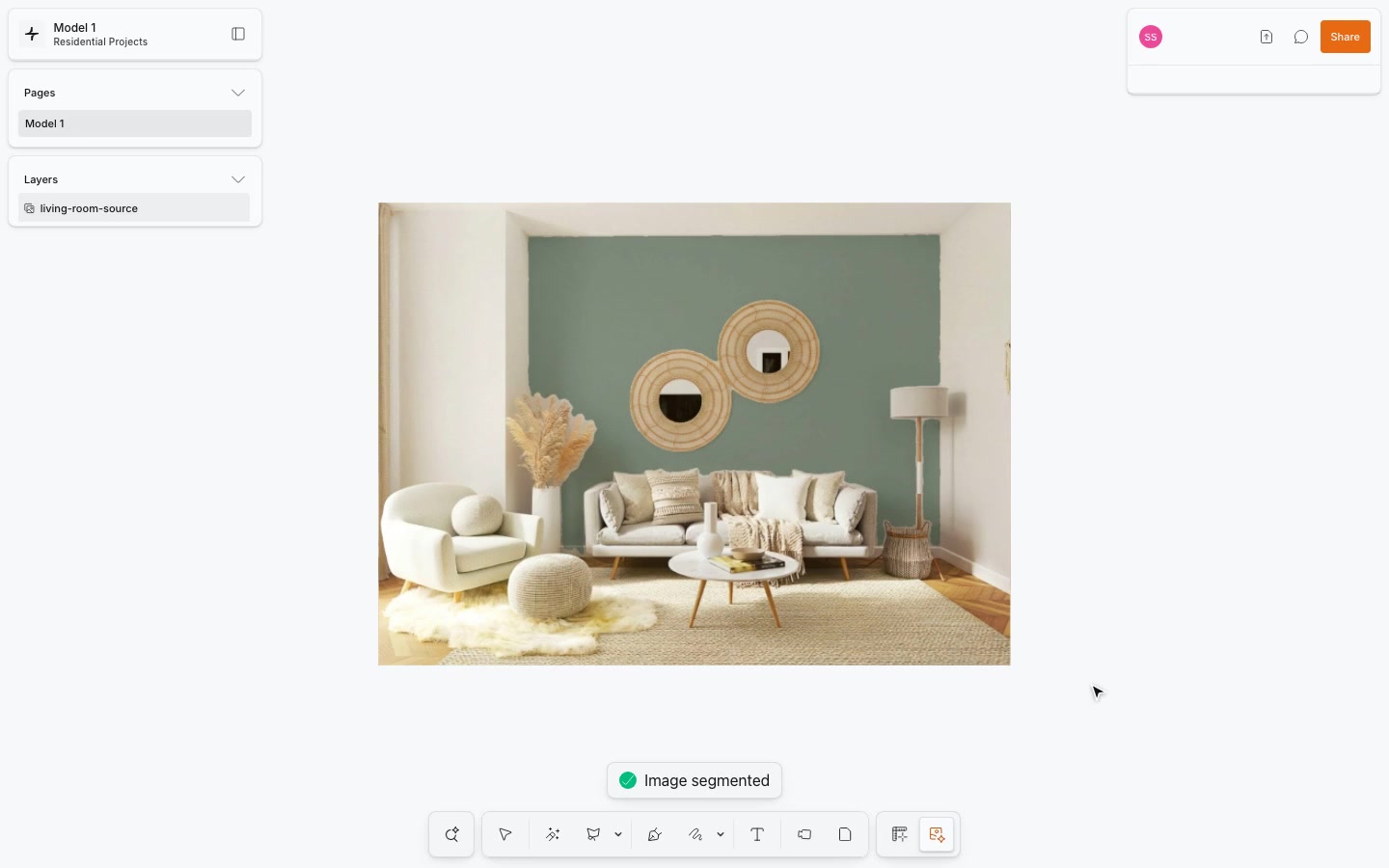
Apply wallpaper
Select a paintable surface, choose Add/Change wallpaper, and upload or drop a clear reference image. Inspect the preview and click Apply wallpaper.
Check how the pattern reads across the wall, particularly at openings and corners. Scale and direction can change the character of a pattern substantially. Wallpaper guide.
Change flooring
Select a detected floor and choose Change Flooring. Supply a reference image of the intended finish, inspect it, then click Apply flooring.
Look at plank or tile direction, transitions between surfaces and the floor around furniture. Keep the viewpoint consistent when comparing alternatives so the finish remains the main variable. A detected carpet uses its own pattern action, rather than the flooring action. Flooring guide.
For reference-based actions that offer built-in samples, selecting a sample can start the operation immediately. Upload your own reference when you want to inspect its preview before applying it.
4. Refine furniture, materials and decorative details
Change an object's material
Use Change Material on a supported cloth or solid object when the question is about its finish, for example, exploring a different upholstery on a sofa.
After selecting the detected object, upload a reference, inspect its preview and click Apply material. Check folds, curves, edges and nearby content in the result. Material guide.
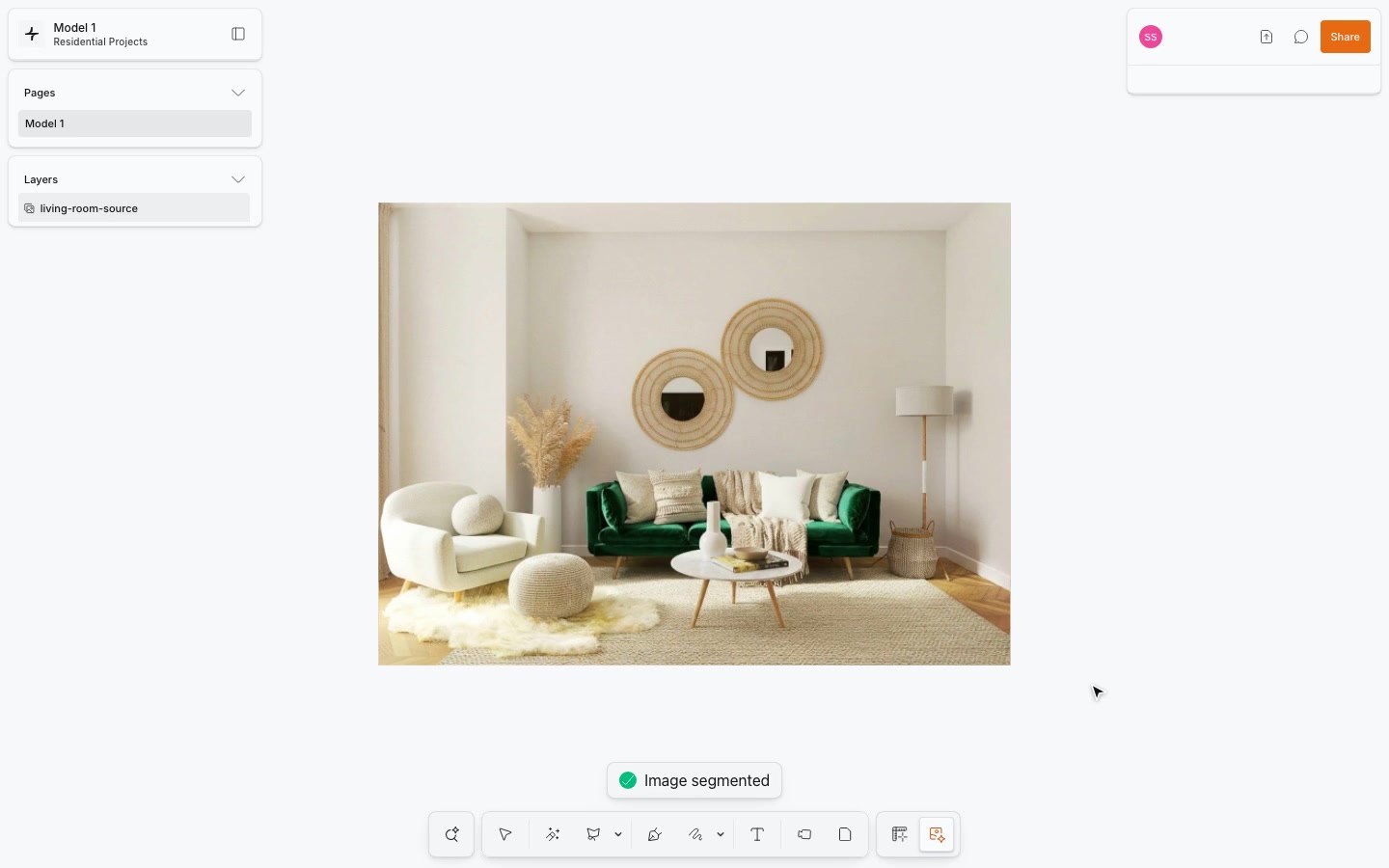
Replace an object
Use Replace Element when you want to explore a different object. Select the detected furniture piece, upload an image of the alternative and run the replacement.
Review its apparent size, perspective, contact with the floor and relationship to nearby objects. The result is an interpretation of the reference within the image. Confirm actual product dimensions separately when developing the furniture layout. Object-replacement guide.
Change artwork and carpet patterns
For a detected wall picture, choose Change Art, supply the artwork reference and click Apply art. For a detected carpet, choose Change Pattern, supply a pattern reference and click Apply pattern.
Inspect the artwork's perspective and edges, and the carpet pattern's direction and scale. If the design question concerns a different object altogether, use Replace Element where available. Artwork and pattern guide.
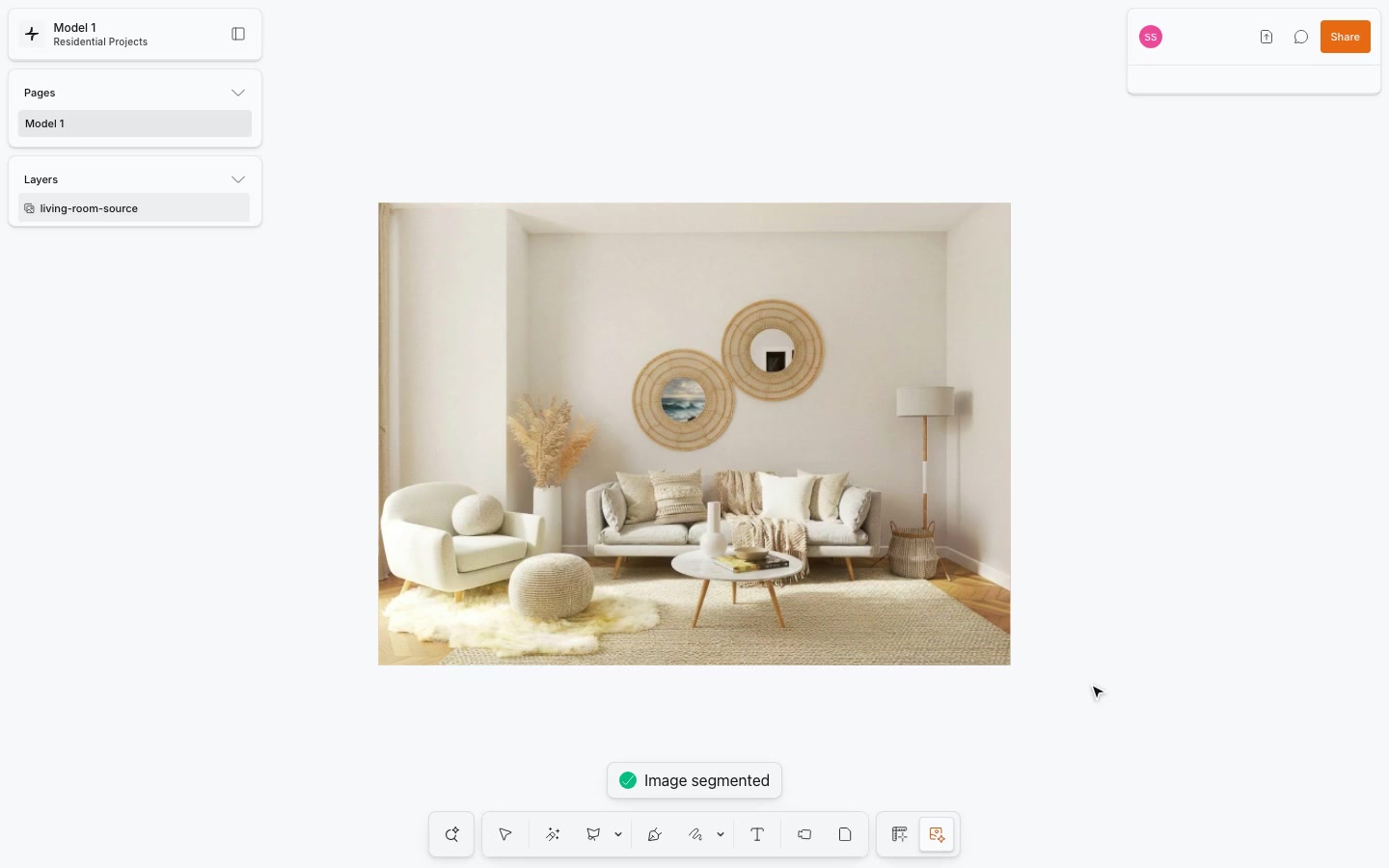
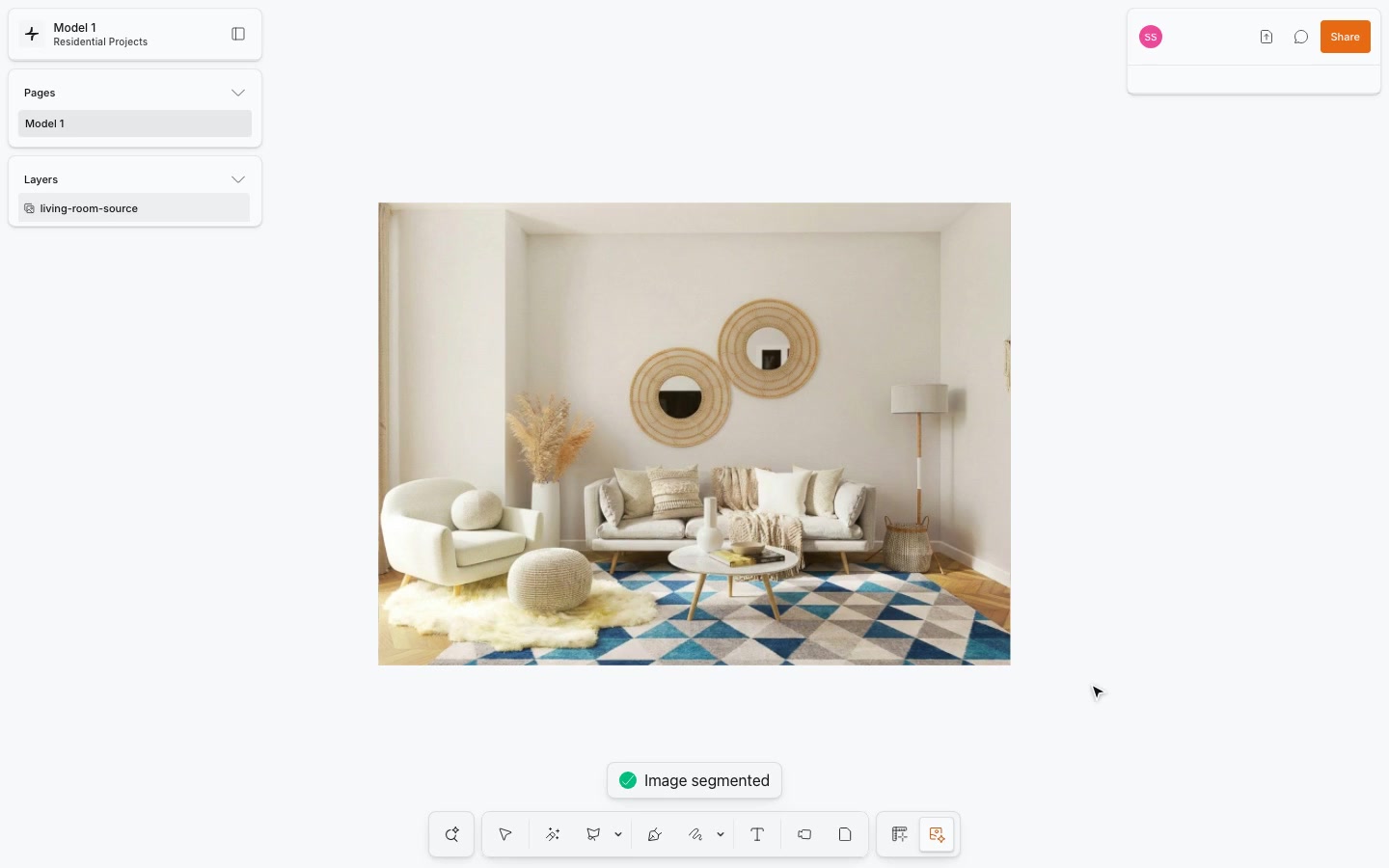
Turn supported lights and electronics on or off
Detected electronic objects can offer Turn On/Off. Use it to change how a supported lamp, screen or other electronic object appears in the image.
This is useful for discussing atmosphere, such as the visual effect of a lamp being on. It is an image-editing action; it does not calculate lighting performance. Availability depends on the detected category. Supported segmentation actions.
5. Clean up the scene and create cutouts
Three tools help with removing content, but they produce different results.
Erase removes a detected object and generates content to fill its former location. Use it when an object distracts from the composition. Inspect the reconstructed area for changes to floor patterns, wall edges or nearby furniture.
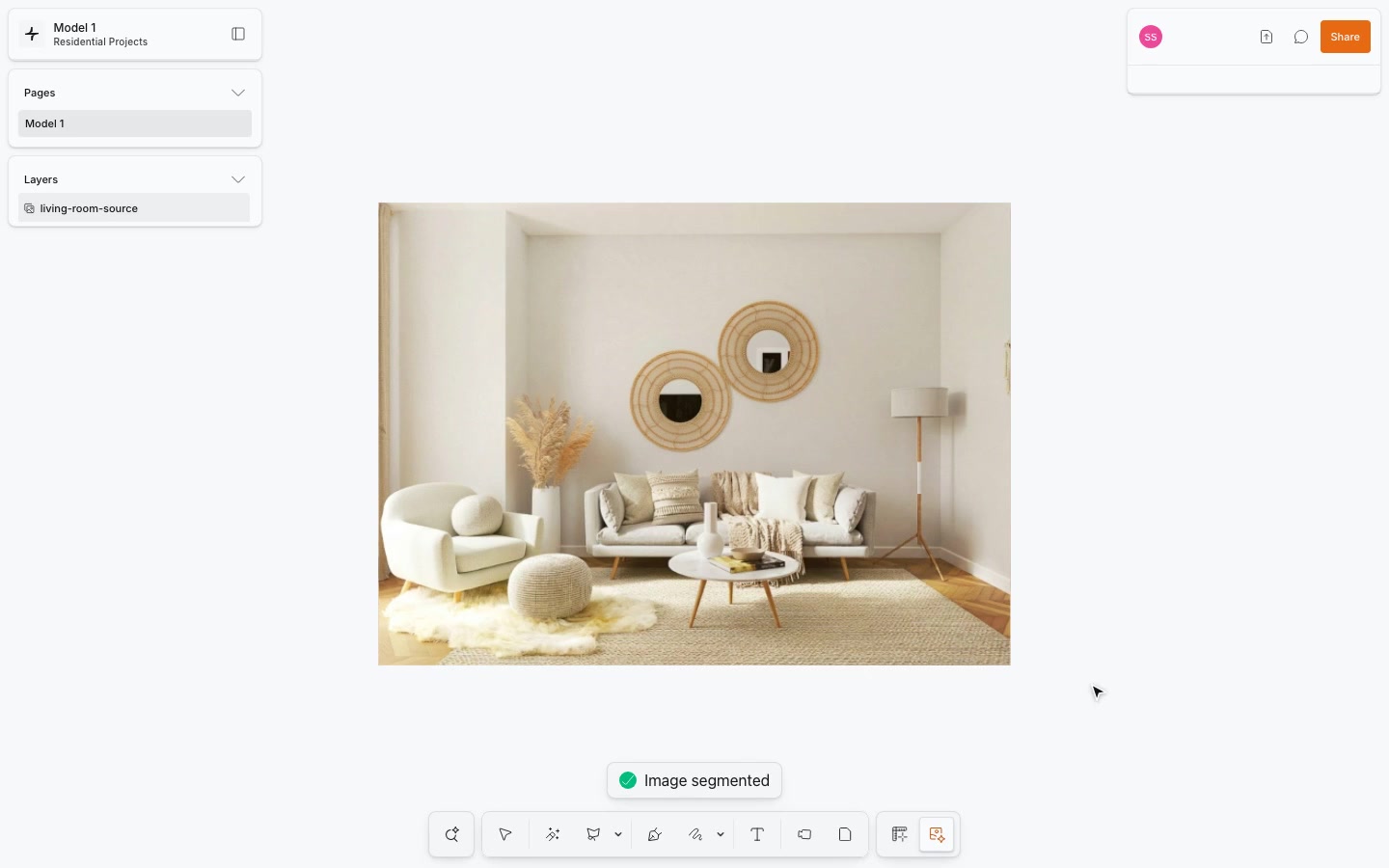
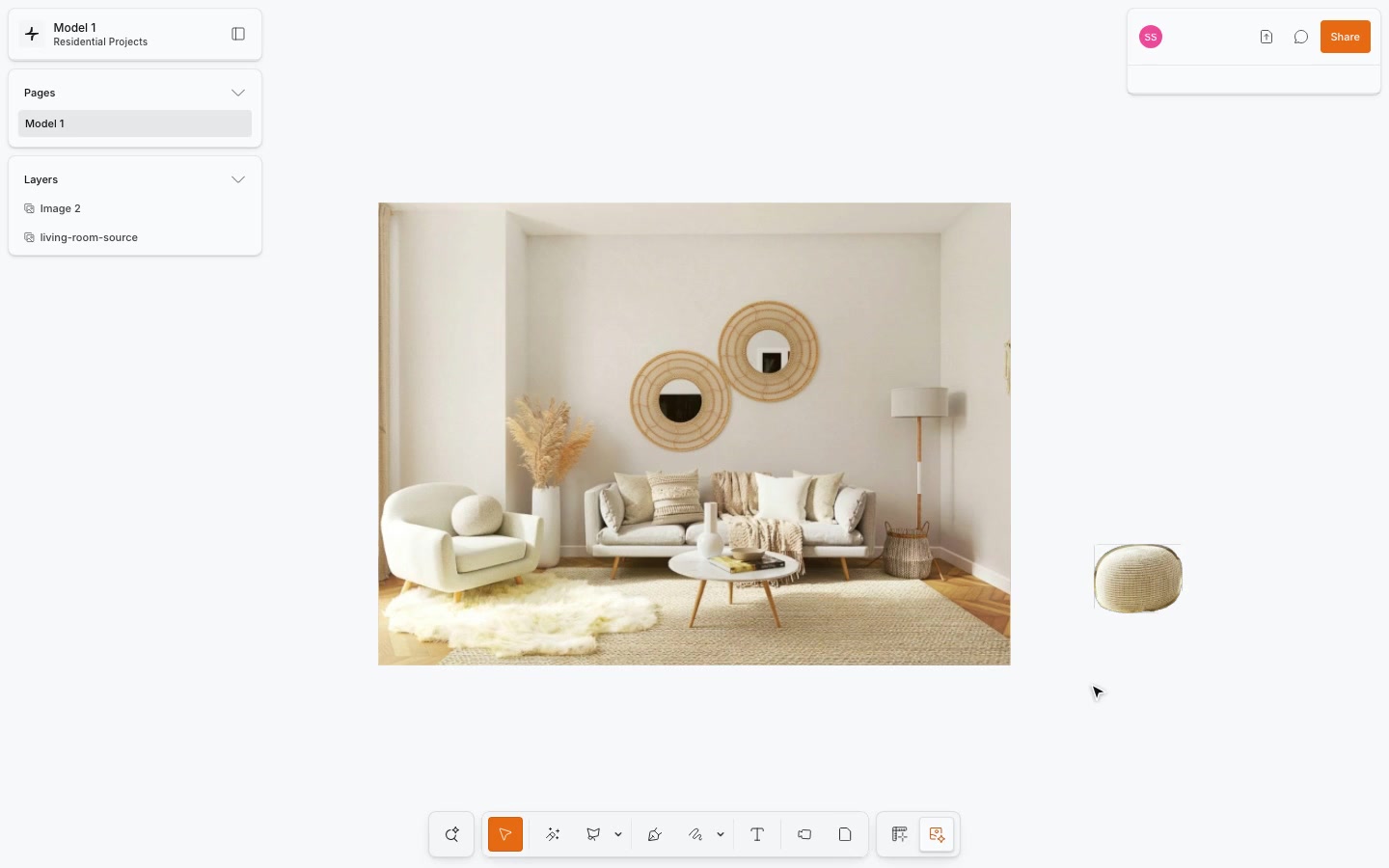
Isolate also removes the object and reconstructs the background, but creates a separate cutout at the object's original position. Move that cutout to arrange it separately, for example, beside a material palette. Because the cutout initially sits over the reconstructed scene, the image may look unchanged until you move it.
Remove background automatically identifies the subject and replaces the image with a background-removed version, retaining its canvas size. Use it when you want a subject without its surrounding scene. To choose a particular detected object and also reconstruct the scene, use Segment → Isolate.
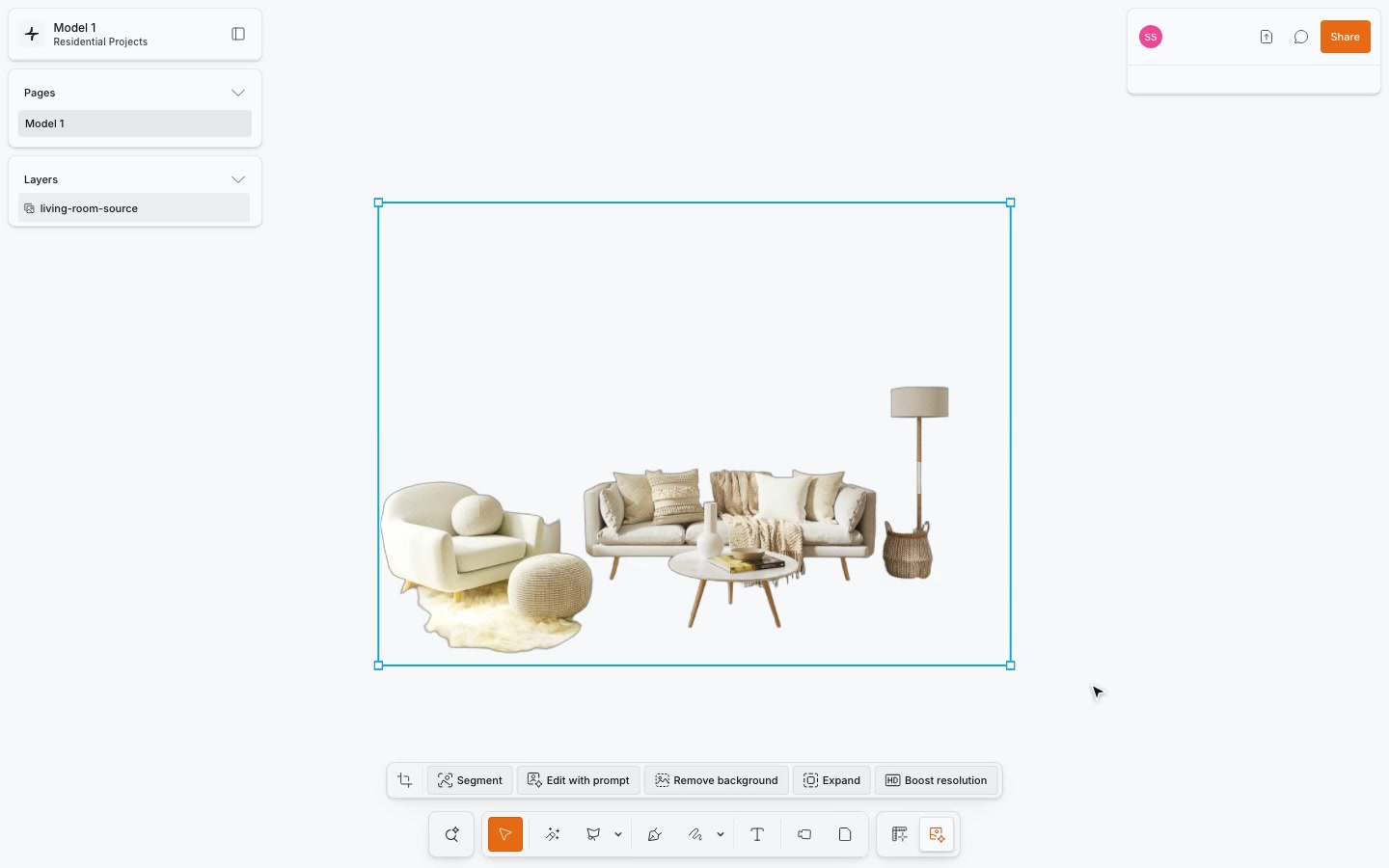
Inspect thin edges, gaps and transparent or reflective details in cutouts. Any reconstructed background is generated content, rather than recovered information about what was hidden. See Erase and Isolate and Remove background.
6. Adjust the composition with Expand
An image that works in a design review may need a wider composition for a presentation slide. Expand generates content beyond the existing edges.
Select the image, choose Expand, and adjust the bounds. You can use Custom, Original, Square, 16:9, 4:3 or 3:2 proportions. Fit frame to image resets the bounds to the source; enlarge them beyond the image to create space for expansion.
The current tool uses bounds and aspect-ratio choices rather than a written expansion prompt or an exact output-pixel-size field.
Review the transition between the original image and generated surroundings, especially architectural lines, repeating finishes and partially visible furniture. If the source was rotated, check placement: the expanded result aligns with the canvas. Expansion guide.
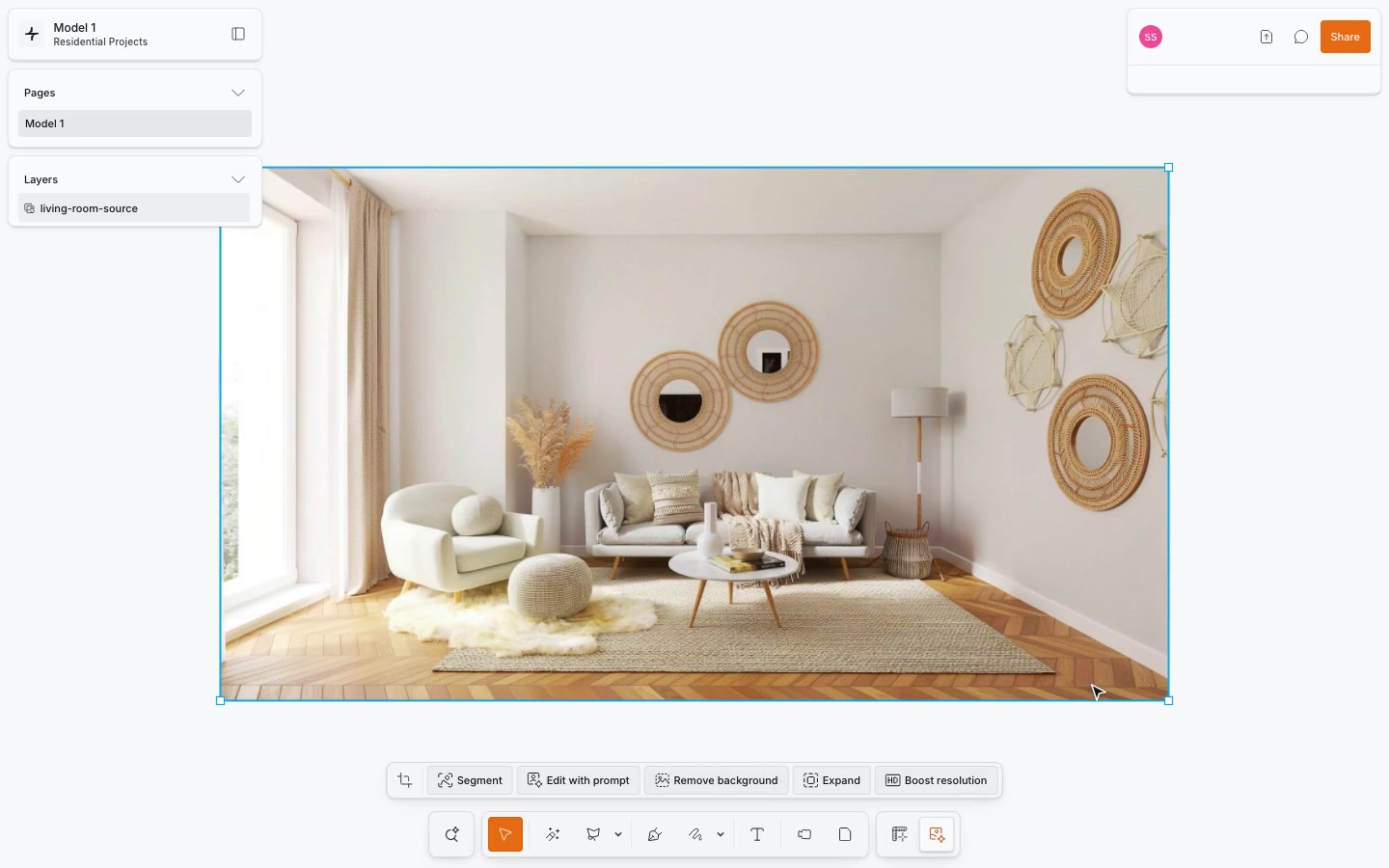
7. Enhance resolution and export
Once the composition and design direction are settled, select the image and choose Boost resolution. It uses preset enhancement settings; there is no enlargement-factor or exact pixel-size control.
Inspect the result at its intended presentation size. Compare fine edges, textures and any text with the original, and check canvas size and position because they may change. Enhancement can alter detail, so judge the result visually before using it. Resolution guide.
To export, select one or more images without other shape types, open Export in the selection's properties, and choose PNG or JPG. Use PNG when you need to retain cutout transparency. Open the exported file to check it before sending it to a client. Image-export guide.
A practical client-review sequence
Imagine a client likes a living-room arrangement but feels the finishes are too cool. A focused sequence could be:
- Keep the original image as the comparison baseline.
- Use Segment and Change paint to test a warmer wall colour.
- Compare the result, then test a flooring reference with Change Flooring.
- Explore upholstery with Change Material. Use Replace Element only if the furniture piece itself is being reconsidered.
- Use a selected-area prompt for an addition such as a rug, or Erase for a distracting object.
- Compare the strongest alternatives and record which decisions the client prefers.
- Refine the final composition, boost resolution if useful, and export.
This is an illustrative workflow, not a requirement to run every tool. Choose the actions that answer the current design question. Comparing a wall-colour change is easier when the camera angle, furniture and other finishes stay consistent.
For a developer reviewing several interior directions, label each alternative by its proposed use or finish strategy. Keep the visual choices connected to the project's specification and budget discussion rather than treating the image as the specification itself.
Plan for credits across the workflow
Camera rendering, segmentation, subsequent edits and re-segmentation are separate AI operations. Check the balance and displayed action cost in Synaps before running them.
Some entitlements show unlimited credits rather than numeric costs. Repeating an action is another submission. Undo restores the earlier state and Cancel stops the local waiting flow; neither guarantees a credit refund. AI credit guide.
Frequently asked questions
Can I edit an existing image, or must I generate a render first?
You can start with an imported image or a render created in Synaps. Select the image to access its available editing actions.
Can I change one surface without requesting a whole-room redesign?
Yes. Use Segment to select a detected surface and choose the relevant finish action. Inspect the surrounding content afterward, since an AI edit can affect details beyond the intended change.
Can I use my own material and furniture references?
Yes. The documented reference workflows accept images for wallpaper, flooring, object materials, replacement objects, artwork and carpet patterns. A clear JPG or PNG is a useful starting point.
Does changing an image update the architectural drawing?
No. Update the corresponding drawing elements, placed assets and specifications separately once you choose a direction.
What is the difference between Expand and Boost resolution?
Expand adds generated surroundings beyond the existing image edges. Boost resolution enhances image detail. Choose according to whether you need a different composition or a clearer presentation image.
Have a render ready for the next client conversation? Open Synaps and start with the first revision you want to explore.
For a worked demonstration, watch From a floor plan to renders and image edits.