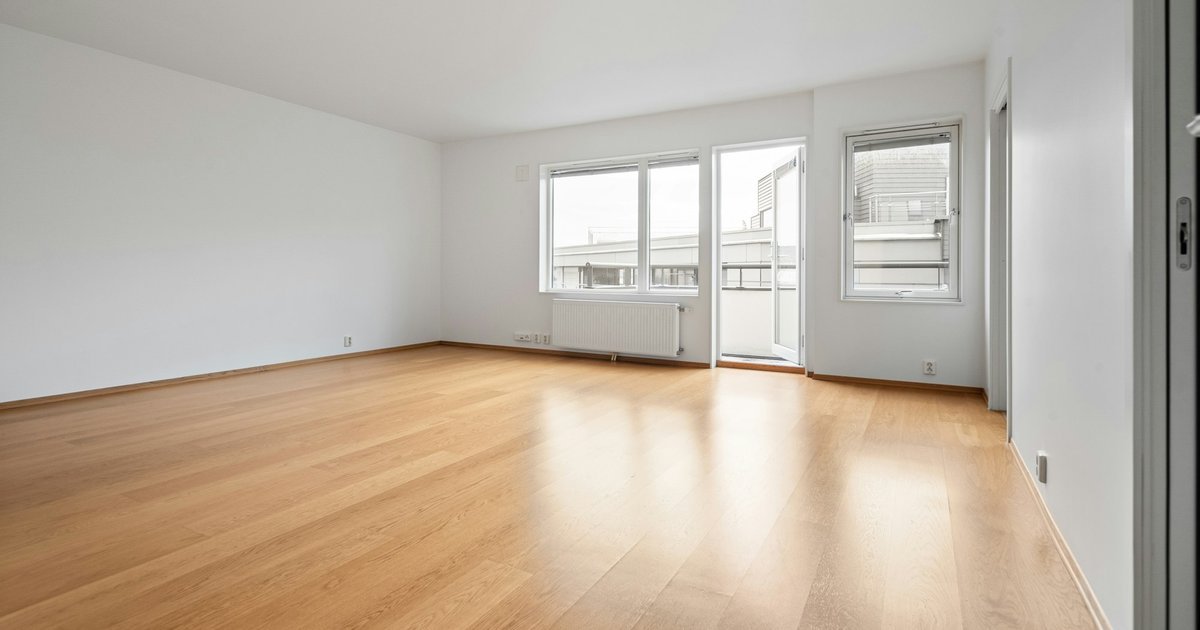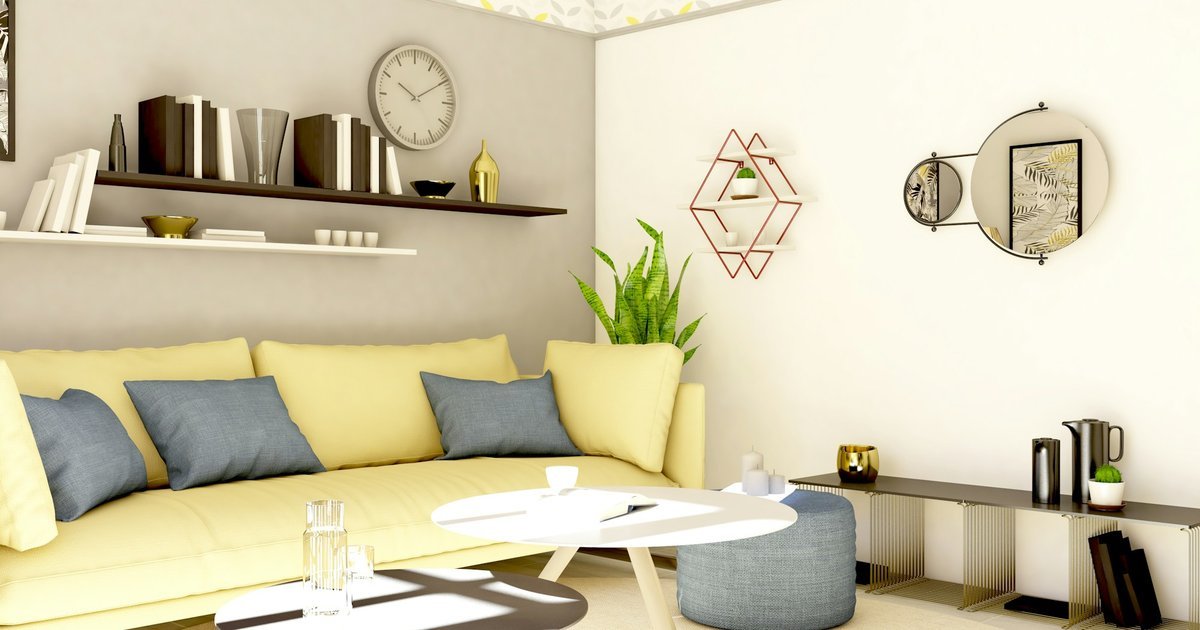
An AI architecture render from a floor plan gives you a concept image of one camera view. A client is coming in on Thursday to agree the layout of a two-bedroom flat. They want to see the living room before they sign.
The image follows your plan and the camera you place. The finishes, light and loose objects it adds are proposals until you draw them. So what you send decides what comes back: the openings, the furniture, the camera and a short brief.
Key takeaways
- An AI render from a plan follows the geometry and camera you give it. Finishes, light and loose objects are its proposals.
- Draw openings at real size and sill height, and place furniture at real size, before you render.
- Give each view one design question, and aim the camera at the wall that answers it.
- Keep the brief short: atmosphere, the finishes that matter and an instruction to keep the viewpoint and arrangement.
- Fix geometry in the plan, viewpoint at the camera and finishes in the image. Then carry each decision back into the drawing.
- Show the image as a concept-stage view, and tell the client how it was made.
What an AI render from a plan carries and what it invents
An AI render made from a plan carries what you drew and invents what you left open. The walls, openings and placed furniture set the room. The camera sets what the view shows. Wall colour, floor material, light, plants, books and cushions come from the model.
That split is the reason to render from a plan at all. Text-to-image tools start from words, so the room shape is a guess. A plan-based tool gives the model your room to work from. The guide to AI tools for architects compares these tool types in more detail.
Treat the invented parts as proposals. A herringbone floor in the image is an idea until you draw or specify it. Before that, the image has made no decision for the project.
Interest in AI architectural rendering sits inside a wider shift in practice. The RIBA AI Report 2026 found 74% of surveyed practices using AI for at least some projects. That share was 59% in 2025 and 41% in 2024. The survey drew more than 1,100 self-selected respondents, mostly in the UK, in March and April 2026.
In the same report, early-stage design visualisation was the most common use. Around 56% of AI users deploy AI there. The base is practices already using AI, not all respondents. RIBA changed the question in 2026, so the figure does not compare with earlier years.
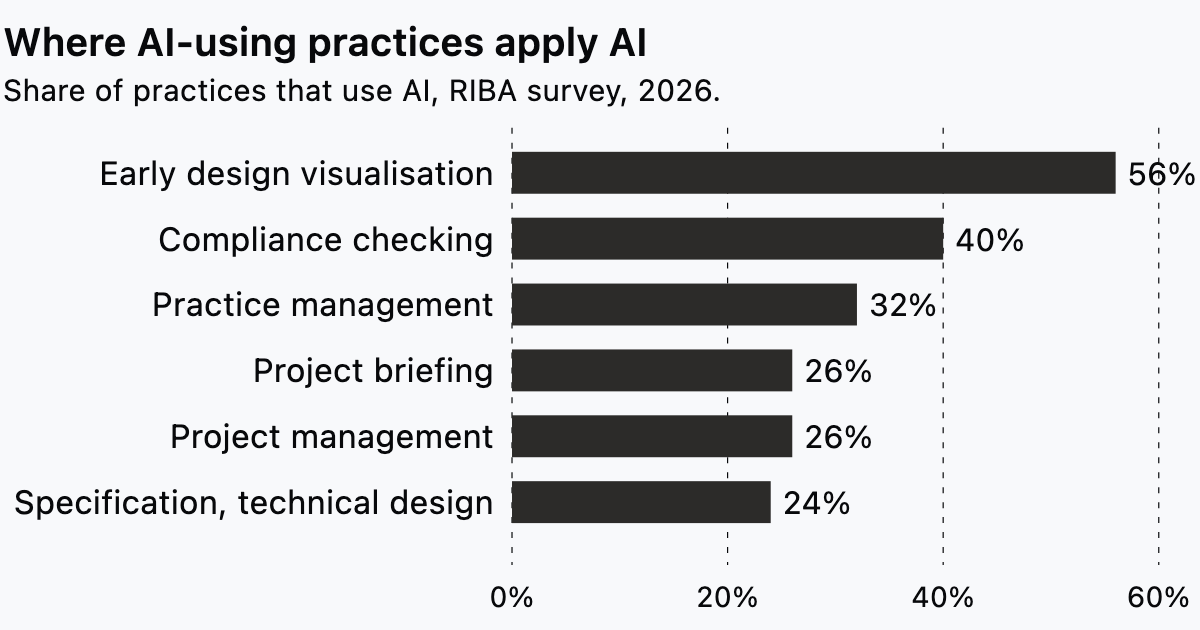
So early visualisation is already the most common AI task among the practices that use AI. What makes an AI image useful there is the plan and the brief behind it.
Prepare the plan before you render
The render can only follow what the plan holds, so finish the plan for the room you want to show. Three things decide most of the result.
Openings at real size and sill height
Draw every window and door in the view at its real width, height and sill height. A window drawn as a plain gap in a wall leaves the model to guess its shape. A full-height glazed door and a window with a 900 mm sill light a room very differently. Draw the one you mean, so the image starts from the right opening.
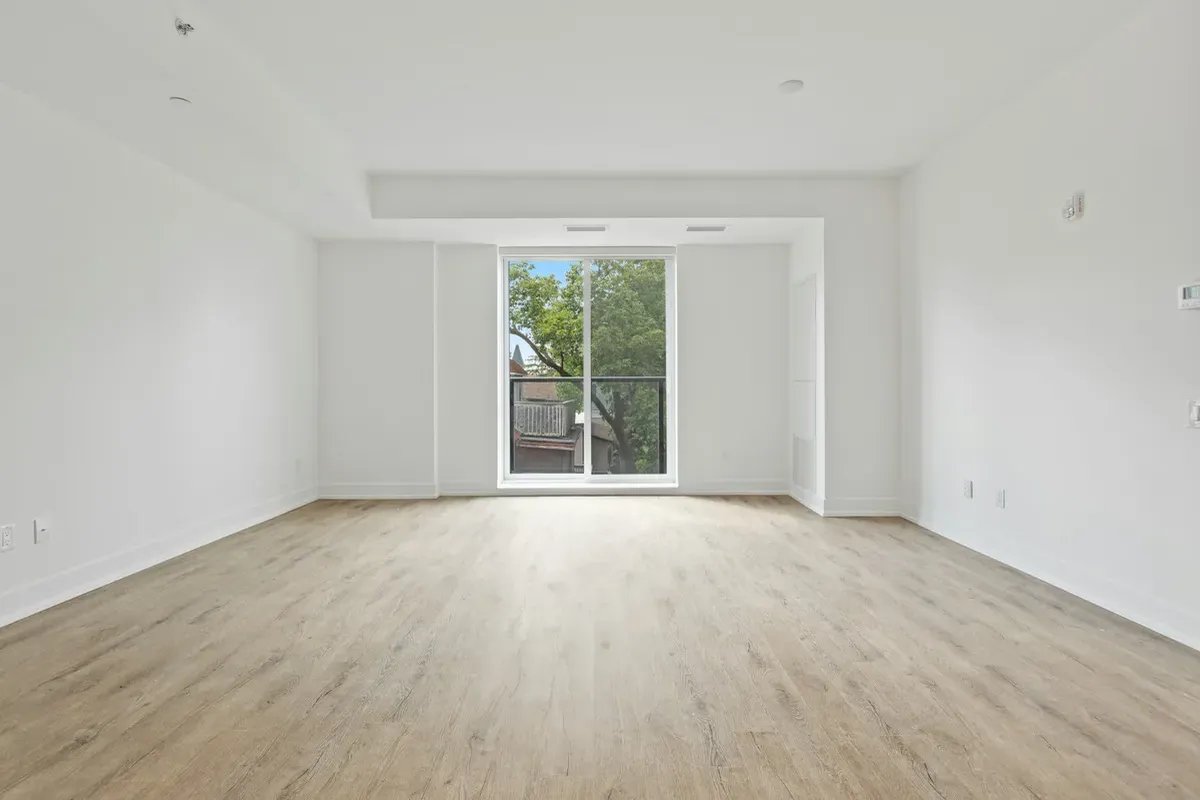
Set the opening type as well as the size, since a slider and a casement read differently. If a prompt produced the layout, resize the openings before you place a camera. The guide to AI floor plan generators covers how those layouts start.
Furniture at real size
Place the furniture you want the client to see, at real size and in its real position. A 2.4 m sofa against a 3.6 m wall is a design statement. An empty room lets the model furnish it with whatever fits its own idea of the space. Leave a zone empty only when you want ideas for it.
In Synaps, the camera badge in the asset library marks pieces with a 3D representation in the camera view.
One design question per view
Decide what each view has to answer before you render it. One typical question is whether the dining table fits beside the kitchen run. Another is whether a widened opening joins two rooms. A view that tries to answer three questions answers none of them clearly. Write the question down, because it decides the camera and the brief.
Place and aim the camera
The camera decides which part of your plan the client sees, so place it where a person would stand. Set it at standing eye height, about 1.5 to 1.6 m, unless the question is about a seated view. A high camera flattens the furniture and fills the frame with floor.
Aim at the wall that answers the design question. For a widened opening, stand in one room and face the other through it. To show daylight on a material, aim across the window rather than straight at it. Light then falls across the surfaces instead of glaring into the lens.
Decide what to leave out of the frame. A corner you have not designed yet will still appear, filled with the model's guesses. Turn the camera away from it, or let a wall or door frame edge the view.
Write a short brief
The brief guides what the model invents, so spend it on the parts you left open. Plan and camera already carry the room. The brief adds atmosphere, the finishes that matter for this view and the time of day.
Name materials the way you would to a client: pale oak, lime plaster, terrazzo with a white aggregate. Vague words such as modern or cosy leave the choice to the model. Keep to three or four finishes, so each one stays readable in the image.
End with an instruction to keep the viewpoint and arrangement as placed. Without it, a model may move furniture to suit its own idea of a good picture. A brief for the Thursday living room could read:
Quiet family living room on an overcast morning. Pale oak floor, warm white walls, a deep green sofa and linen curtains. Keep the camera viewpoint and the furniture arrangement as placed in the plan.
Leave other architects' names and projects out of the brief. The RIBA AI Report 2026 found 76% of respondents agree that "AI increases the risk of imitation", while 7% disagree. Describing your own materials keeps the image tied to your design rather than someone else's.
Read the result against the plan
Read the image the way you would read a consultant's drawing: against your own plan. Count the windows and doors in the view and match each one to the plan. Count the seats, tables and beds. Compare proportions, such as ceiling height against door height and sofa length against wall length.
Look at door swings and thresholds too. A door that opens the wrong way in the image tells the client something you did not draw.
Research on image models shows why the count matters. The T2I-CompBench++ benchmark reports that text-to-image models "often struggle to effectively compose complex scenes with multiple objects" (Huang et al.). That benchmark tests text prompts, not images made from a plan. A furnished room is still a scene with many objects, so count them on any image.
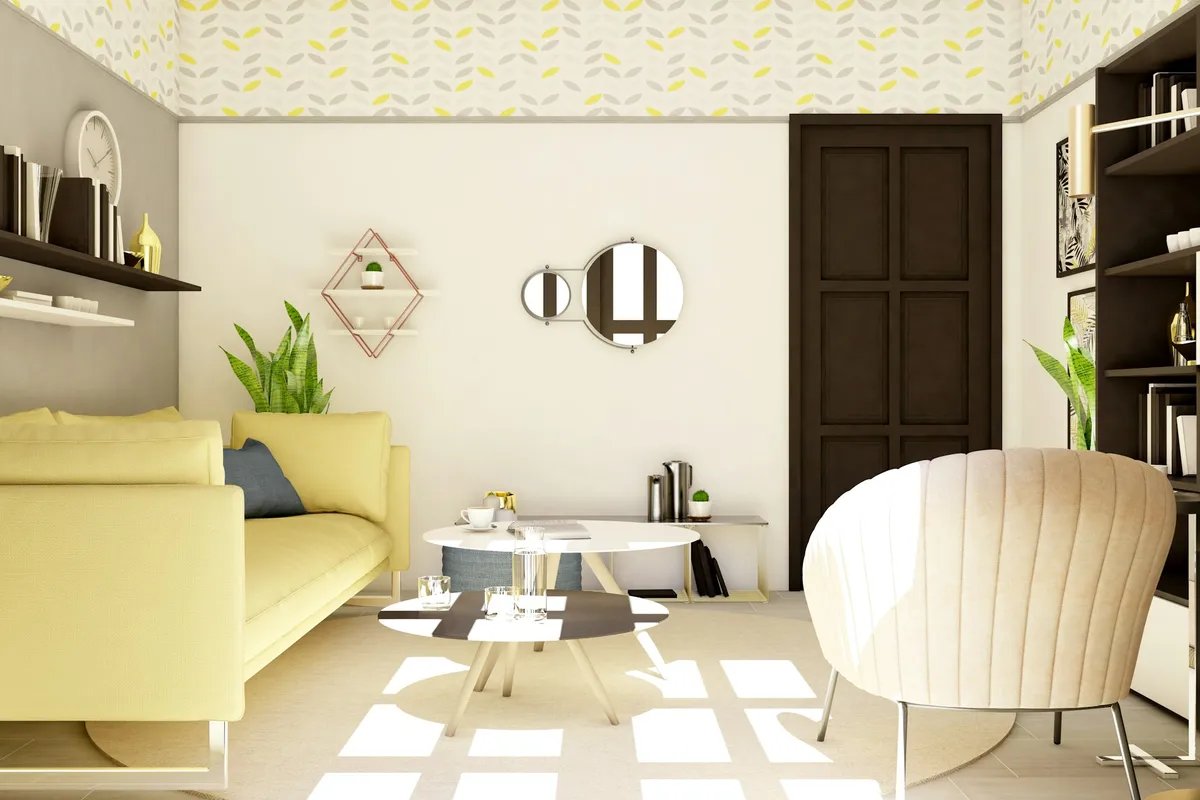
Then decide which differences matter. An extra cushion does not change the design. A missing window, a door in the wrong wall or an oversized sofa does. The client will read the image as the plan.
Fix each problem at its source
Correct the input that caused the problem. Geometry lives in the plan, the viewpoint lives in the camera and finishes live in the image. Moving a window in the image leaves the plan and the picture telling different stories.
| What is wrong in the view | Where to fix it | What to change |
|---|---|---|
| A window or door is missing or the wrong size | Plan | Redraw the opening, then render again |
| The room reads too long or too narrow | Plan | Correct the wall lengths or ceiling height, then render again |
| Furniture is missing or out of scale | Plan | Place the piece at real size, then render again |
| The view faces the wrong wall | Camera | Re-aim the camera, then render again |
| Too much floor or ceiling in the frame | Camera | Move the camera, then render again |
| The mood or time of day is wrong | Brief | Rewrite the atmosphere line, then render again |
| The floor or wall finish is wrong | Image | Edit that surface in the image |
Render again after every plan change. A generated image shows the plan as it stood when you rendered it. Later edits do not reach it.
Test finishes on the image
Finishes are the one input you can test directly on the image. Change one surface at a time, so the client can see what each decision does. Compare each version with the first image before you move to the next surface.
In Synaps, segment the image to try new flooring or wall paint.
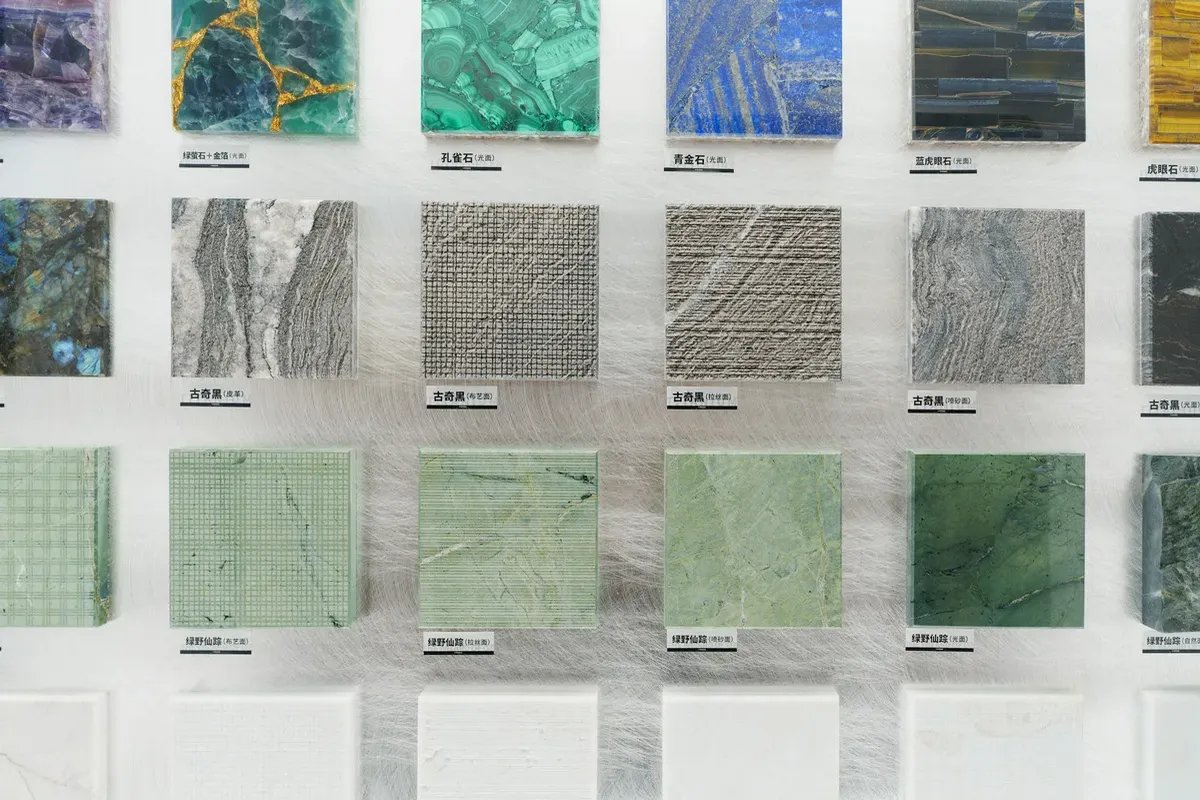
Carry the chosen finish back into the drawing and your specification notes. The image shows a direction. Product dimensions and material data still come from the manufacturer.
Present it to the client honestly
Show the image as what it is: a concept-stage view of one design question. Label it on the sheet, for example "Concept view, finishes indicative". Put the plan beside it with the camera position marked, so the client knows where they are standing.
At schematic design stage, the drawing is what the client agrees to. The image helps them read it.
The AIA's guidance on responsible AI use asks firms to "disclose to clients and stakeholders when and how AI is being used in project workflows". The same guidance says architects "remain accountable for all work products, decisions, and representations made to clients". That is US professional guidance, but the habit works anywhere. Add a line on the sheet saying AI produced the image.
The image will not carry the design argument for you either. In the RIBA AI Report 2026, 17% of respondents felt their designs were better because of AI, while 42% disagreed. The case for the layout still rests on the plan and your reasoning.
After the meeting, carry every decision back into the drawing. If the client chose the green sofa and the oak floor, add both to the plan and the finishes schedule.
Create interior views from your plan in Synaps
Synaps publishes this article. The job: create interior images from a camera placed in your own floor plan. Then test finishes on them and export the view for the meeting.
- Draw or trace the plan and furnish it from the asset library. Choose badged assets wherever their appearance in the view matters.
- Choose Camera from the drawing tools.
- Click to place the camera, then move the pointer to aim it and click again to set its direction.
- With Select active, select the camera alone to show its rendering prompt.
- Choose an interior style, or No style, and enter a short prompt on atmosphere and finishes.
- Click Apply. The interior image appears on the canvas as a separate item beside the plan.
- For another viewpoint, reposition or re-aim the camera and click Apply again. After a plan change, render the camera again.
- Select the image and use Segment. Then use Change flooring with a reference image, or Change paint on a wall.
- Update the drawing and placed assets to match the finish you chose.
- Select the image and choose Boost resolution for the presentation copy.
- Export the selected image as PNG or JPG, or place it on a paper and export the sheet as PDF.
Frequently asked questions
Can I render a plan that exists only as a scan or photo?
Not directly. A render needs walls, openings and a camera position, and a picture holds none of them as geometry. Trace the picture into editable walls and openings first, or draw over it. The guide to turning a JPG or photo of a plan into a CAD drawing covers tracing and setting the scale.
How should I label and name the views on a sheet?
Number each view and title it with the question it answers, such as "View 2: kitchen to dining through the widened opening". Put the same number at the camera position on the plan. Keep the concept-stage note and the AI line under each title. The client can then point to a view by number during the meeting.
How many views does a client meeting need?
One per design question, which often means two to four for a flat or a house extension. Add a view only when a new question comes up. A few labelled views are easier to discuss than a gallery.
Should I keep older versions of a view?
Keep the version the client approved, named with the date and the plan revision it came from. Retire superseded views from the presentation, so nobody discusses a layout that has moved on.